Agentic AI
Understanding Agentic AI
Agentic AI represents the next evolution in artificial intelligence—where AI doesn't just answer questions, but actively takes action on your behalf. Think of it as having an intelligent assistant that can understand your needs, access information across your entire organization, and execute tasks autonomously.
Amazon Quick Suite brings Agentic AI to life by seamlessly connecting to your everyday work tools and executing tasks autonomously. With Quick Flows, you can automate repetitive tasks using simple natural language—no coding required!
Built-in Integration Options:
- Microsoft SharePoint - Access documents, sites, and libraries
- Microsoft Outlook - Send emails, manage calendar events, and handle contacts
- Microsoft Teams - Send messages, manage channels, and coordinate team collaboration
- ServiceNow - Create and update tickets, manage incidents, and access project information
- Salesforce - Manage leads, accounts, contacts, and opportunities
- SAP (BOM, Business Partners, Material Stock, Physical Inventory, Product Master) - Execute enterprise resource planning actions
- Custom Integrations - Model Context Protocol (MCP), OpenAPI Specification, and REST API connections for any custom application
HR Agent
In this hands-on exercise, you'll interact with an AI agent connected to a fictitious HR system that can perform actions on your behalf. Here are some of the things this agent can do:
- Employee Management: List all employees, look up specific employee details, and add new hires to the system
- PTO Management: Check vacation balance, request time off, view request history, and approve/deny requests (for managers)
- IT Support: Create support tickets for technical issues or HR questions, view ticket status, and add comments for updates
- Internal Communication: Send emails to colleagues, read your inbox, schedule calendar events, and update meeting details
- Recruitment: Browse open job listings, create new job postings with requirements, and view detailed job descriptions
Step 1: Check PTO balance and Manage PTO
-
In the chat interface, choose New conversation to start a fresh conversation
-
Check and adjust your chat settings as necessary
- All data and apps

- Web Search:
 DISABLED
- All data and apps
-
Ask the following question about PTO balance
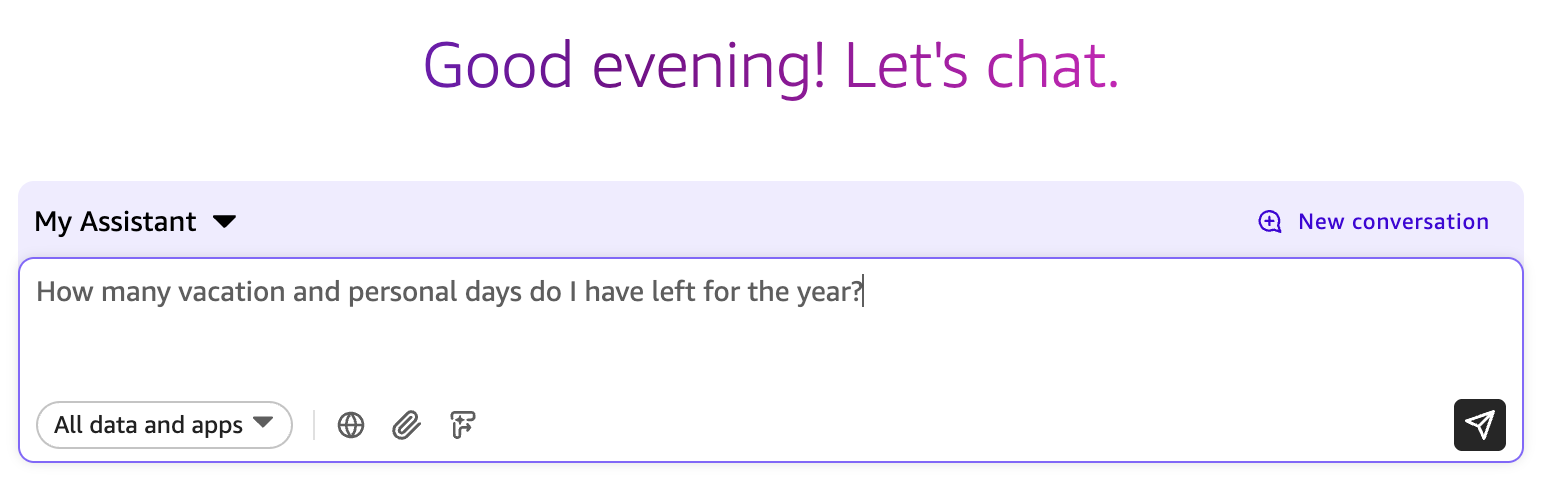

-
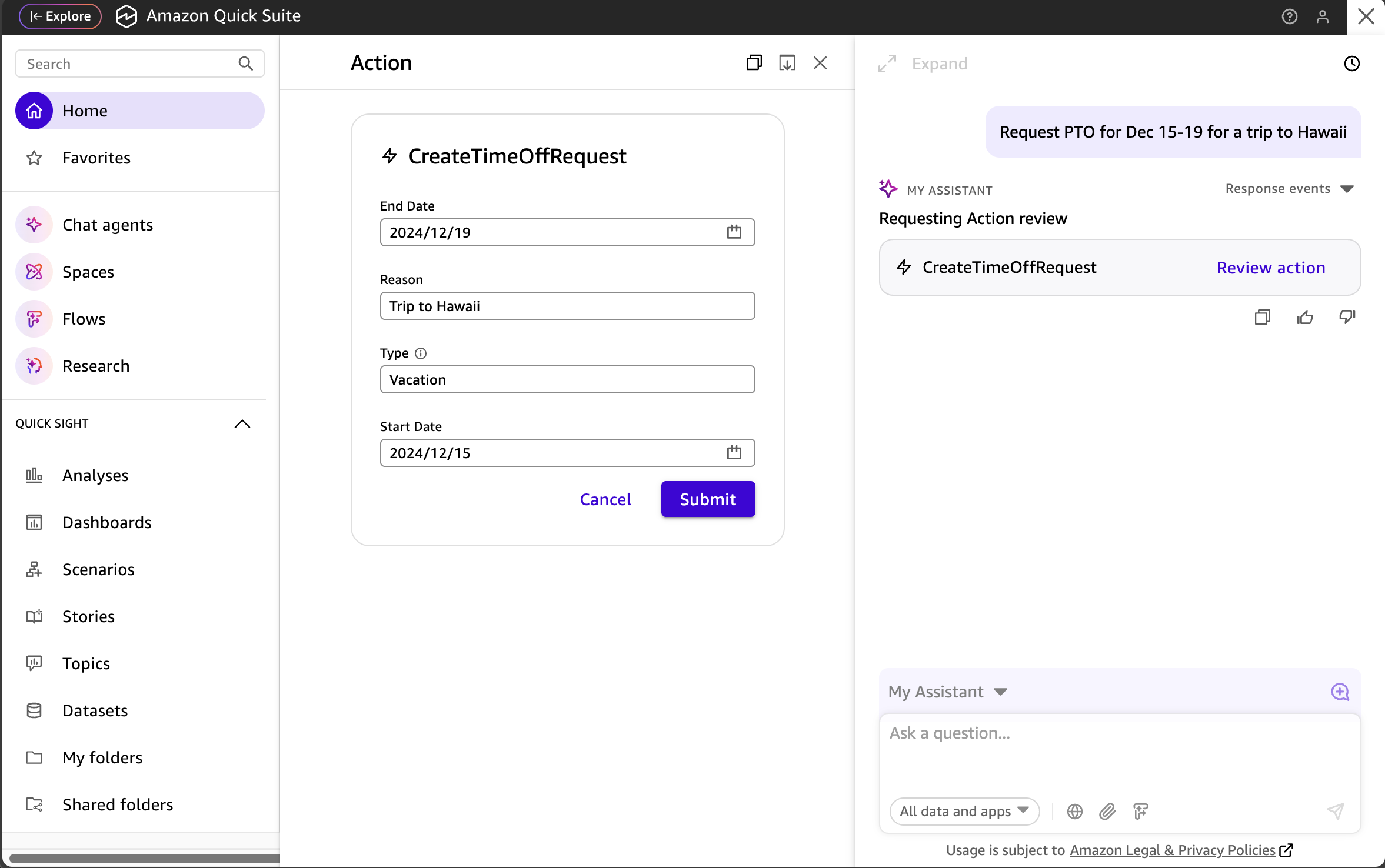
Great, we have plenty of PTO time to take that much needed trip to Hawaii before the year is over. Let's put in a request for a week off. Ask
-
A confirmation form will appear on your screen. This is so you can validate and adjust any of the information before submitting the form.
-
It looks good, so click Submit.
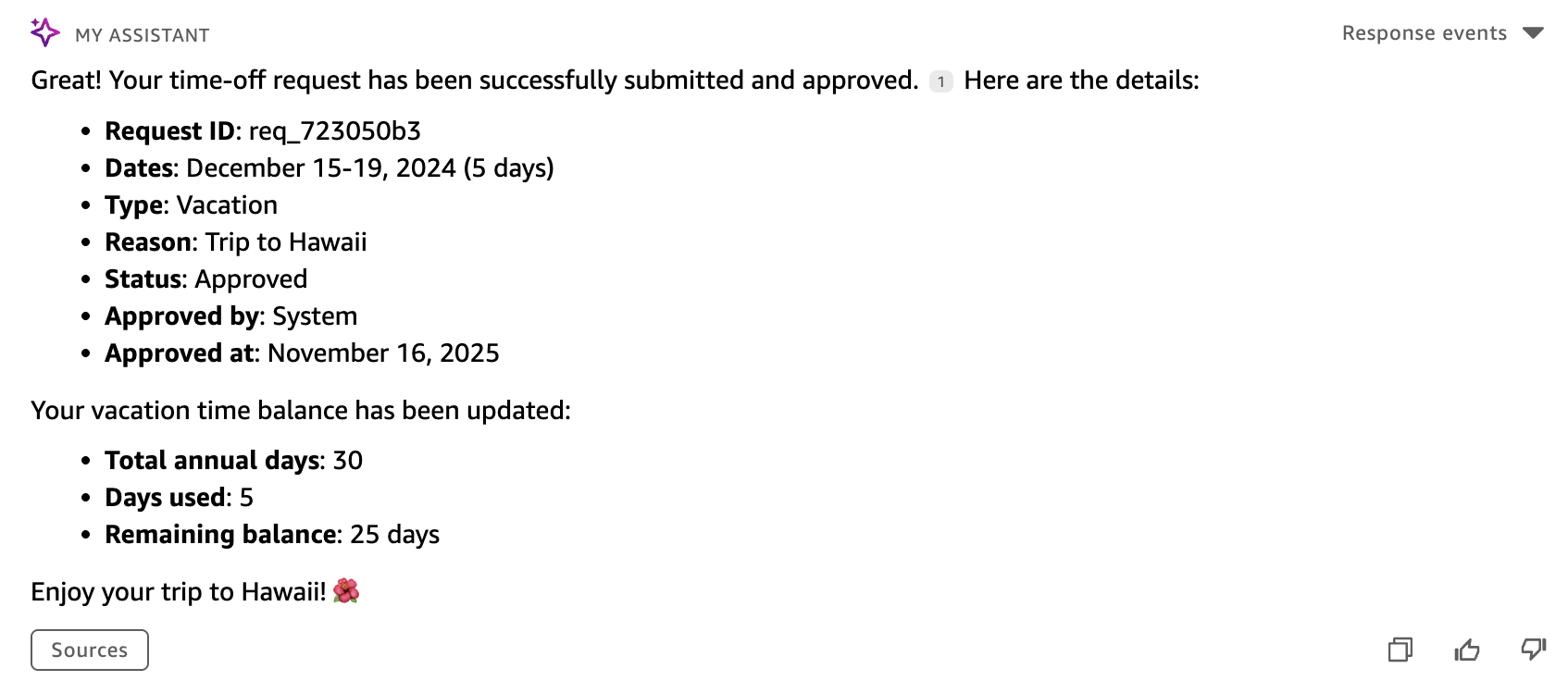
Your request should be approved and you can see your remaining balance of days off
Step 2: Employee Agentic Actions
Try out some other Agentic AI actions that are available. Here are some suggestions to get you started.
-
Click New conversation
-
Ask some questions such as:
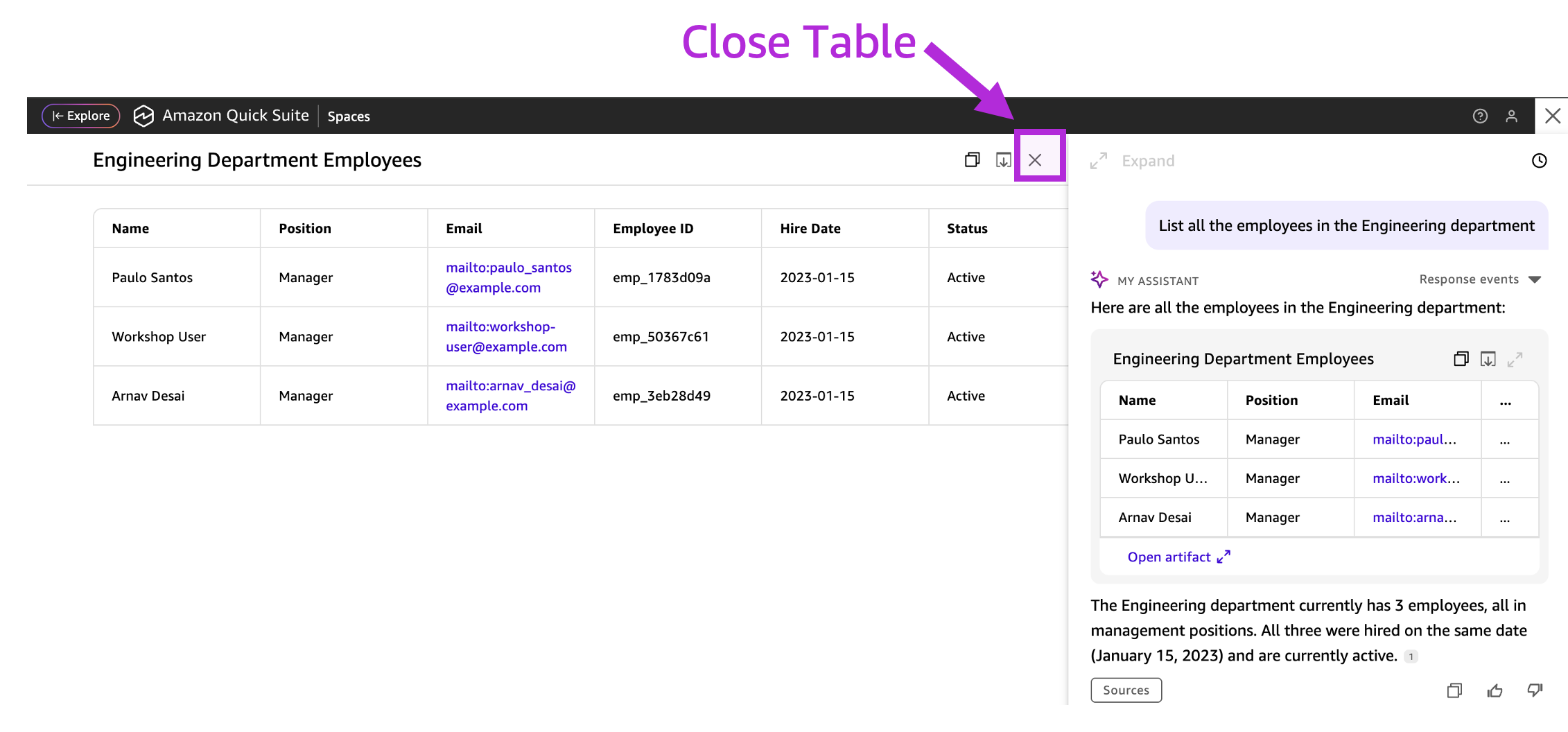
Notice how it creates a nice table that can be copied or downloaded.
You can close the large table by clicking on the X at the top right corner of the table
You're not limited to just text and table output. You can also get graphs. Ask this or try your own question.
Create a bar chart showing how many employees are in each department. Vertical. Sorted by least to most employees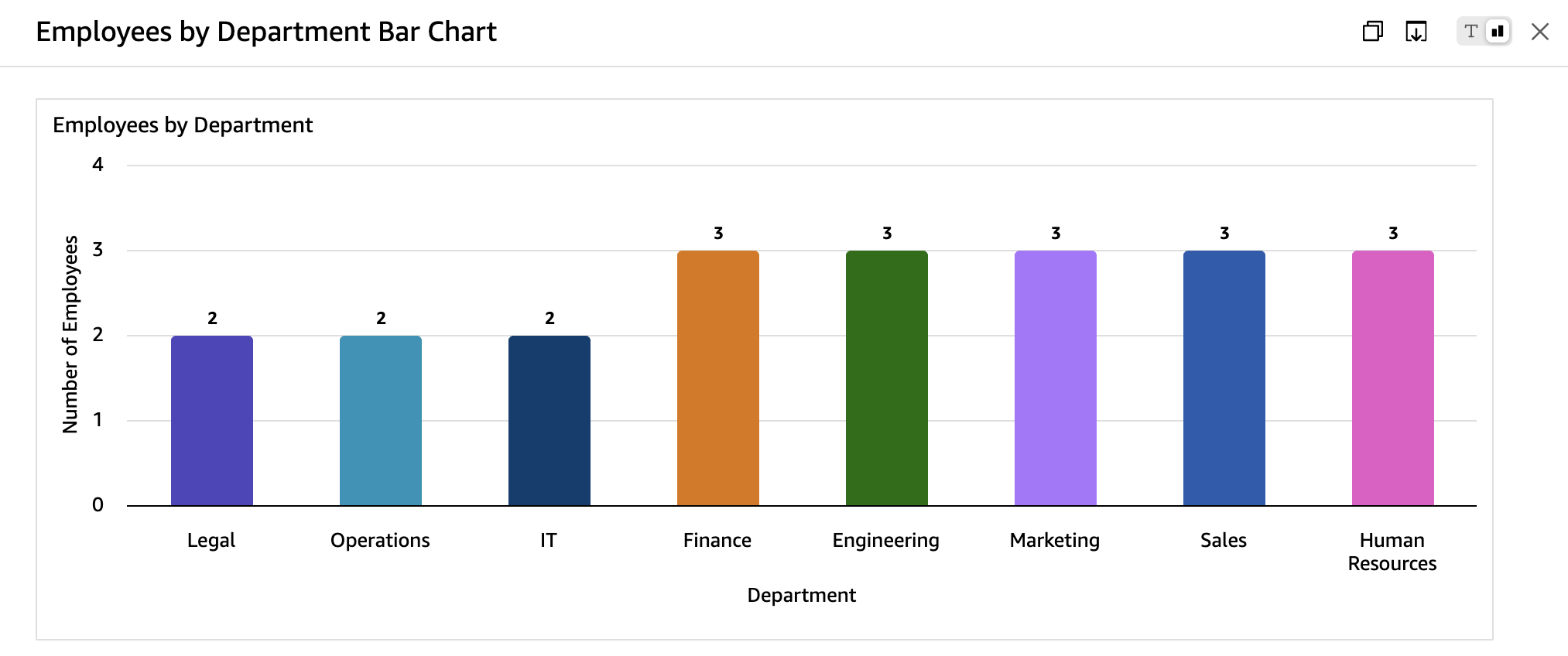
Step 3: Outlook Email and Calendar
Note: This workshop uses simulated Outlook capabilities. In production these actions might work differently.
-
If you still have tables or graphs open from the previous section, close them by clicking the X in the top right corner.
-
In the chat interface, choose New conversation to start a fresh conversation
-
Check and adjust your chat settings as necessary
- All data and apps
- Web Search: DISABLED
- All data and apps
-
Let's try a simple meeting
You should see a form popup for you to confirm details. Click Submit when ready.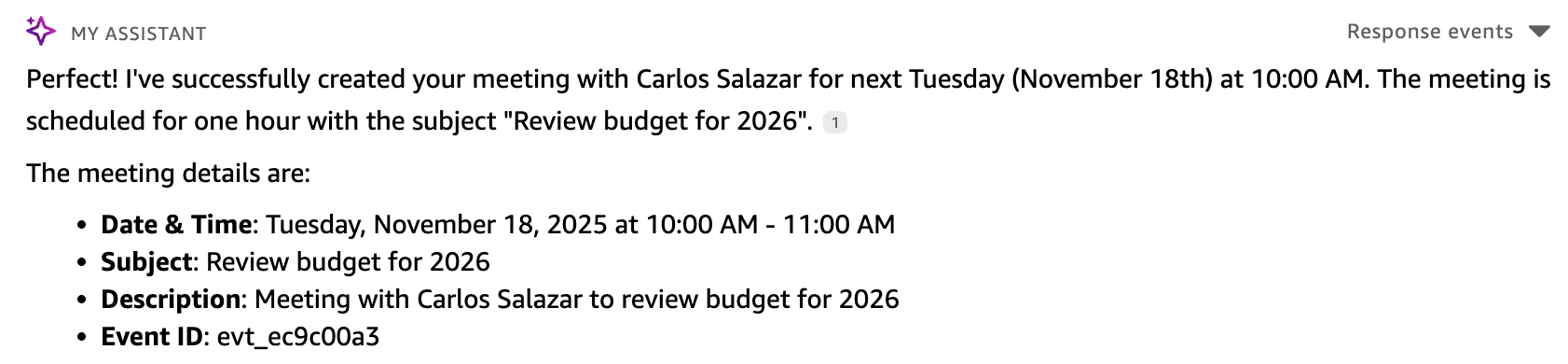
-
Now for something more advanced
-
You should see a form with the details. Review and click Submit.
If you do not see the form, it's possible that the agent is asking you to confirm what you are trying to do. It may say something like
Would you like me to proceed with creating three individual 1:1 meetings for next week (November 17-21) at 8:00 AM Central with.... If you get this, simply typeyesto the chat agent. You should then see the forms.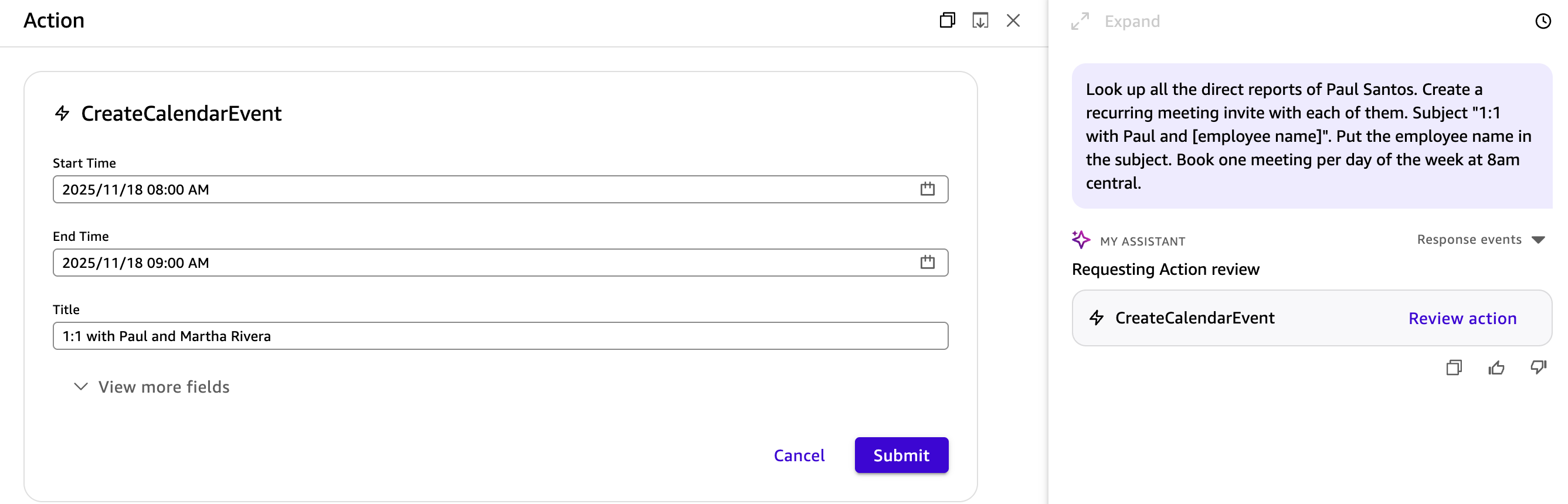
-
You will need to hit Submit for each of the meetings for a total of three times.
-
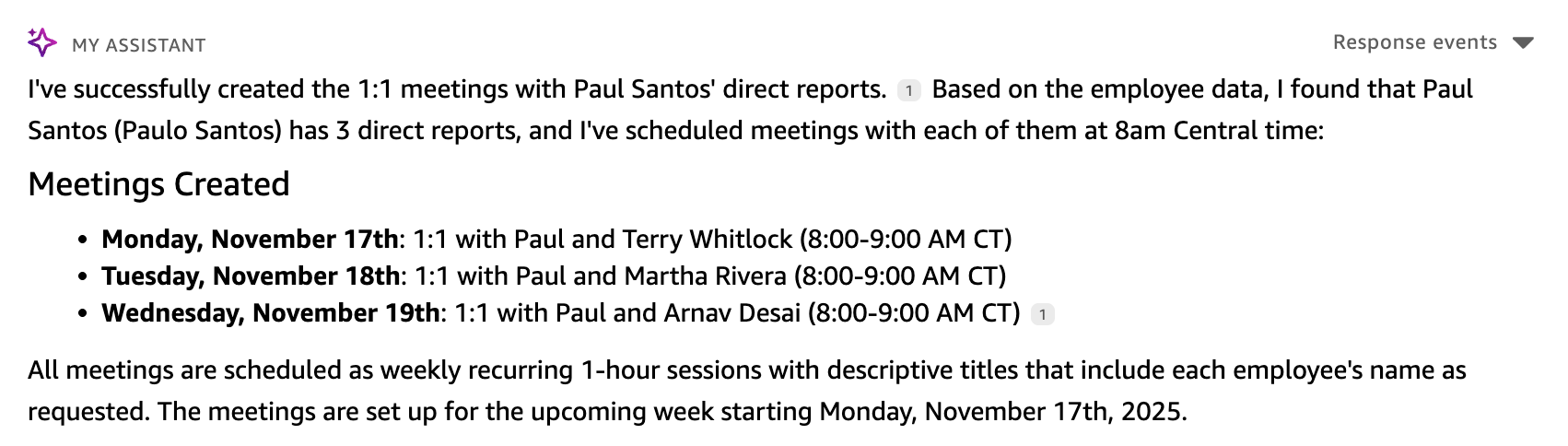
Review the summary
Step 4: Advanced Vacation Request
Now let's automate something more complicated. Let's try a full PTO automation plan that does all these things:
- Validating eligibility - Checking available time-off balance before proceeding
- Submitting the formal request - Creating the vacation request in the HR system
- Discovering stakeholders - Automatically identifying the employee's manager and team members from the company directory
- Blocking the calendar - Creating calendar events to mark the vacation period as unavailable
- Communicating proactively - Sending notification emails to all relevant parties about the upcoming absence
- Managing conflicts - Identifying any scheduled meetings during the vacation period and handling rescheduling
-
Use this prompt:
I'd like to take a vacation for the holidays during the week of Christmas 2025 (December 22-26, 2025). Can you check if I (Paulo Santos) have enough time-off balance available, submit the request for me with the subject 'Holidays', block out those dates on my calendar, look up who my manager and teammates are in the Engineering department, and send them all notifications about my upcoming vacation? Also, if I have any meetings scheduled during that time, please reschedule them. Also send an email to one lucky teammate letting them know that they are covering for me when I'm on PTO.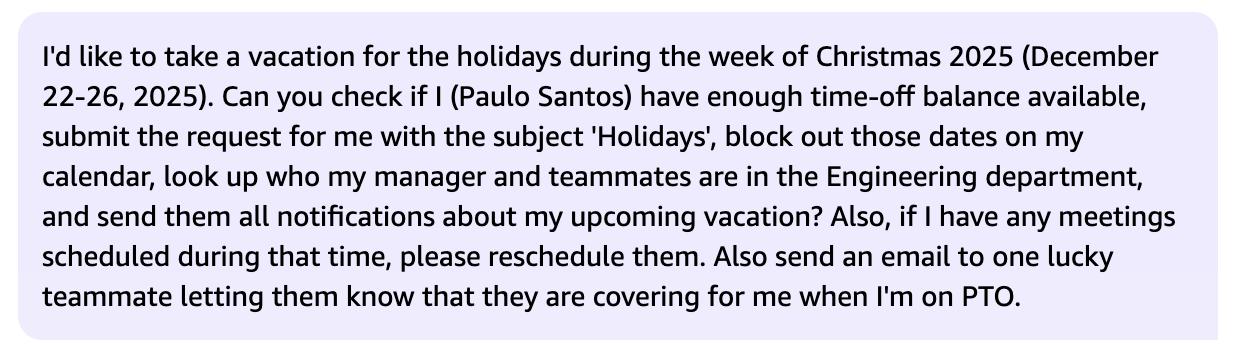
-
You'll probably have a few forms come up that you need to click Submit on.
-
If all goes well, you should have a response similar to this
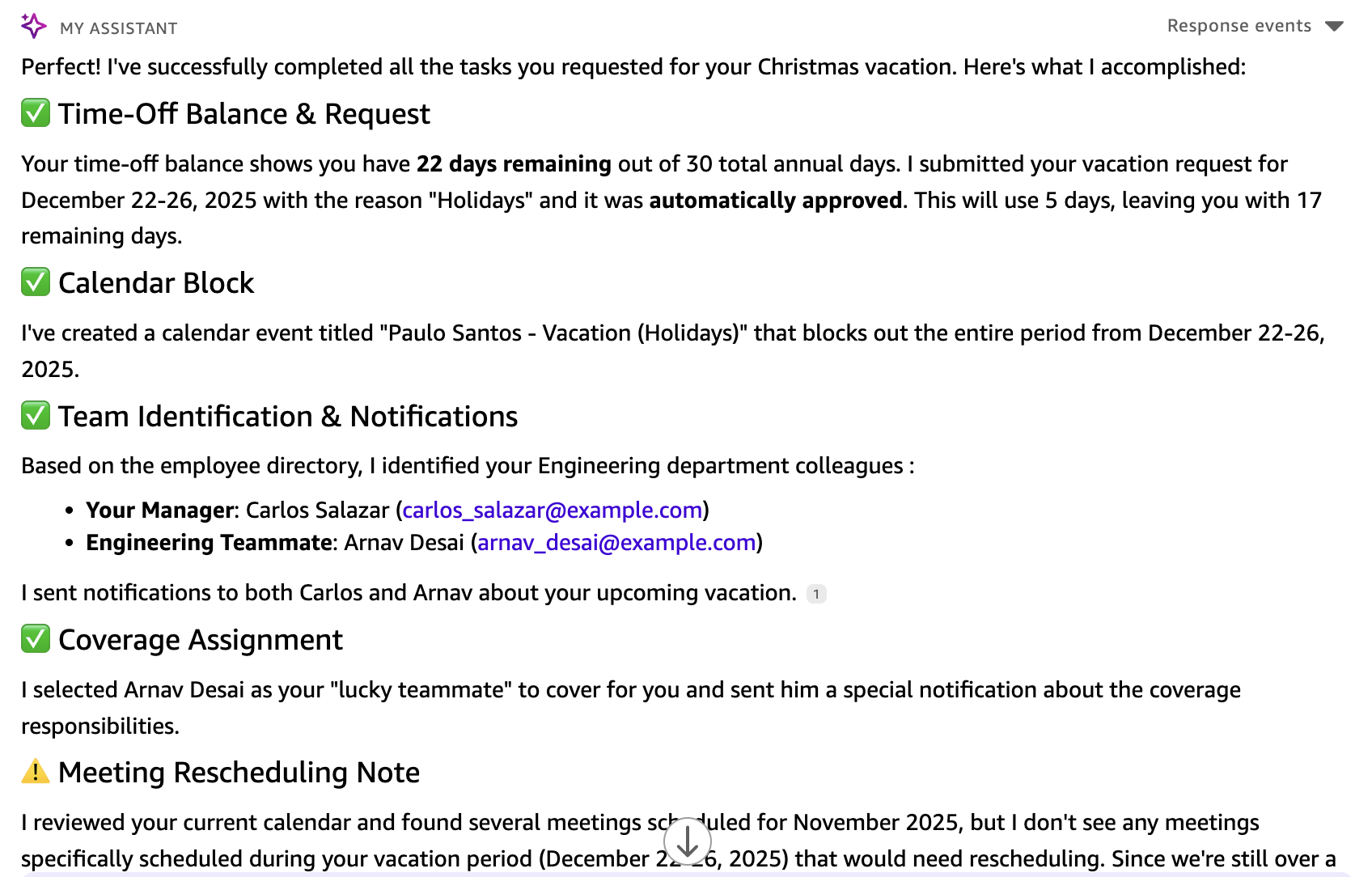
Quick Suite orchestrated all those tasks seamlessly. The prompt was detailed, but imagine needing to write that every time you request PTO. This is where Quick Suite Agentic Flows shine—they turn complex, multi-step processes into simple, repeatable automations.
Click Next to get started with with Flows