Vacation Flow
From Complex Prompts to Reusable Flows
Paulo's vacation prompt was impressive—but imagine having to write that detailed instruction every time you need time off. That's where Quick Suite Flows come in.
A Flow transforms a complex prompt into a reusable automation that anyone can run with simple inputs. Instead of crafting detailed instructions, users just provide the basics and let the Flow handle the rest.
The Transformation
Before (Complex Prompt):
I'd like to take a vacation for the holidays during the week of Christmas 2025
(December 22-26, 2025). Can you check if I (Paulo Santos) have enough time-off
balance available, submit the request for me with the subject 'Holidays', block
out those dates on my calendar, look up who my manager and teammates are in the
Engineering department, and send them all notifications about my upcoming vacation?
Also, if I have any meetings scheduled during that time, please reschedule them.
Also send an email to one lucky teammate letting them know that they are covering
for me when I'm on PTO.
After (Flow):
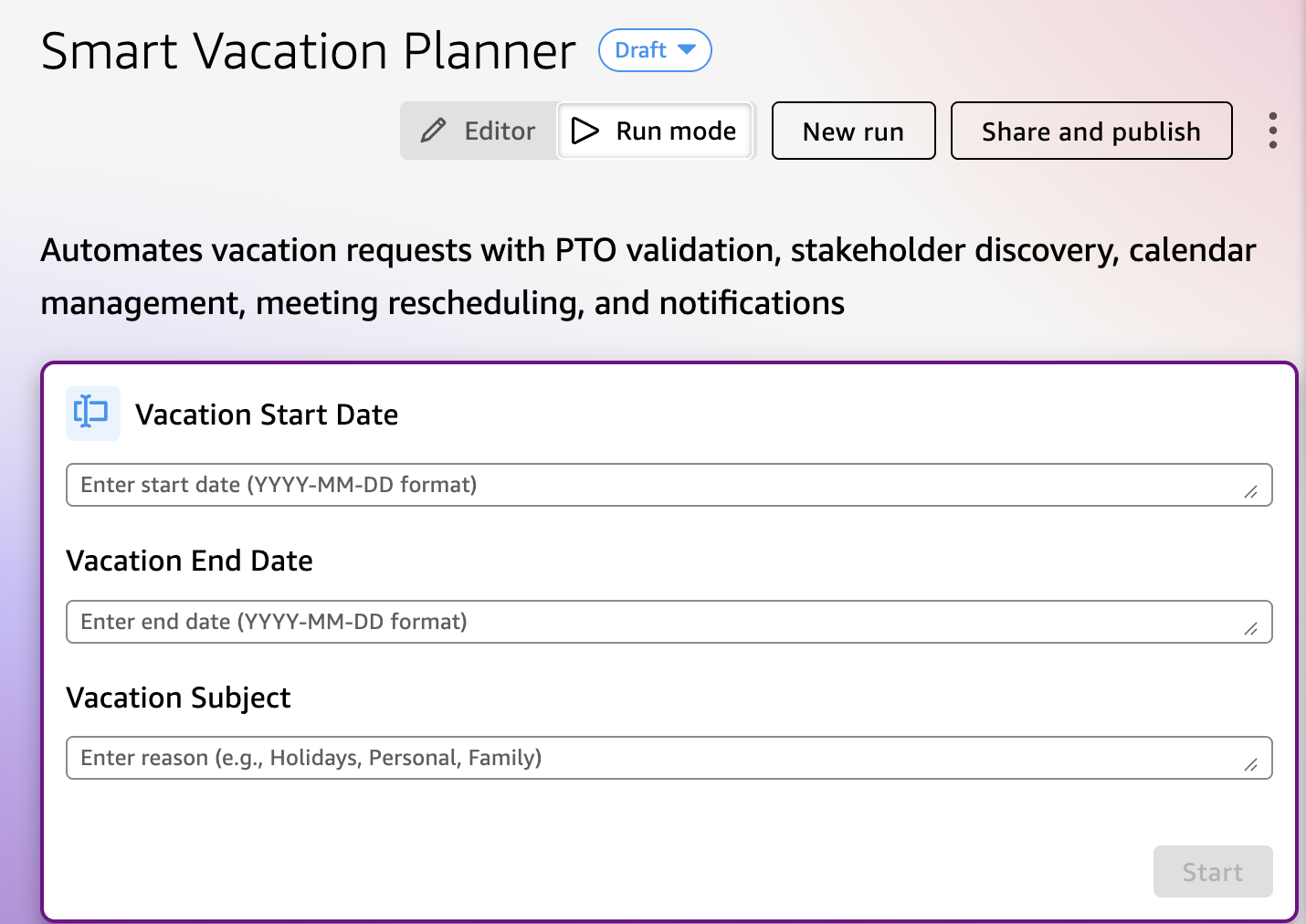
What Happens Behind the Scenes
When the Flow runs, it automatically:
- Validates PTO balance - Checks available days and stops if insufficient
- Submits the request - Creates the formal vacation request in HR system
- Discovers stakeholders - Looks up manager, teammates, and selects coverage person
- Blocks calendar - Creates "Out of Office" block on calendar
- Sends notifications - Emails manager, teammates, and coverage person
- Confirms completion - Provides summary with request ID and remaining balance
Why Use Flows?
- Simple - Just fill in a few fields instead of writing complex prompts
- Consistent - Same steps execute every time, nothing gets missed
- Shareable - Once created, anyone in your organization can use it
- Maintainable - Update the Flow once, and everyone benefits
Step 1: View Flow Screenshots
Screenshots
Due to limited time for the workshop, we will only look at screenshots for what the Flow would look like in this situation.
Here is what the flow looks like to the end user. They can see that they need to specify the dates and subject and start the flow.
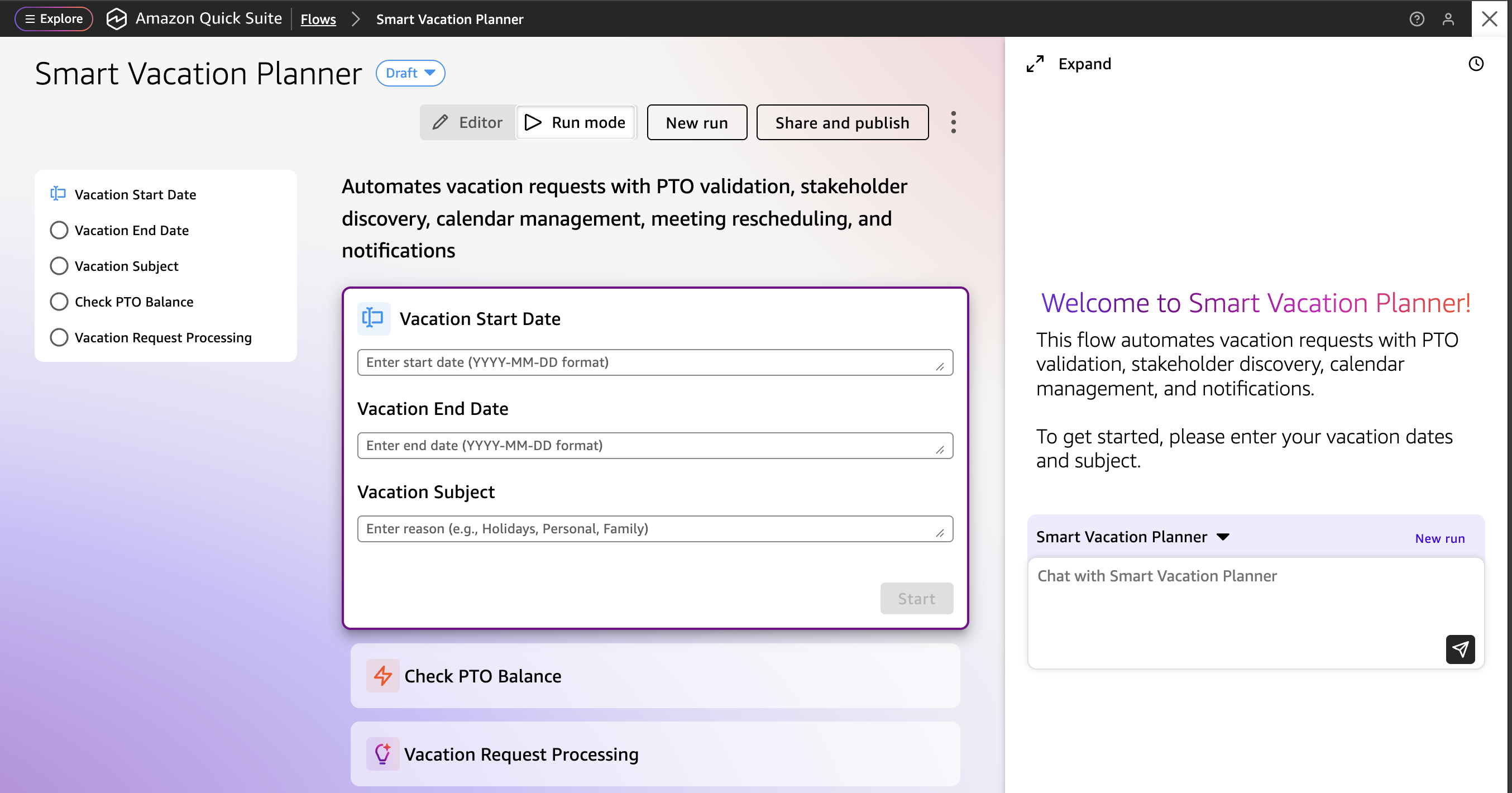
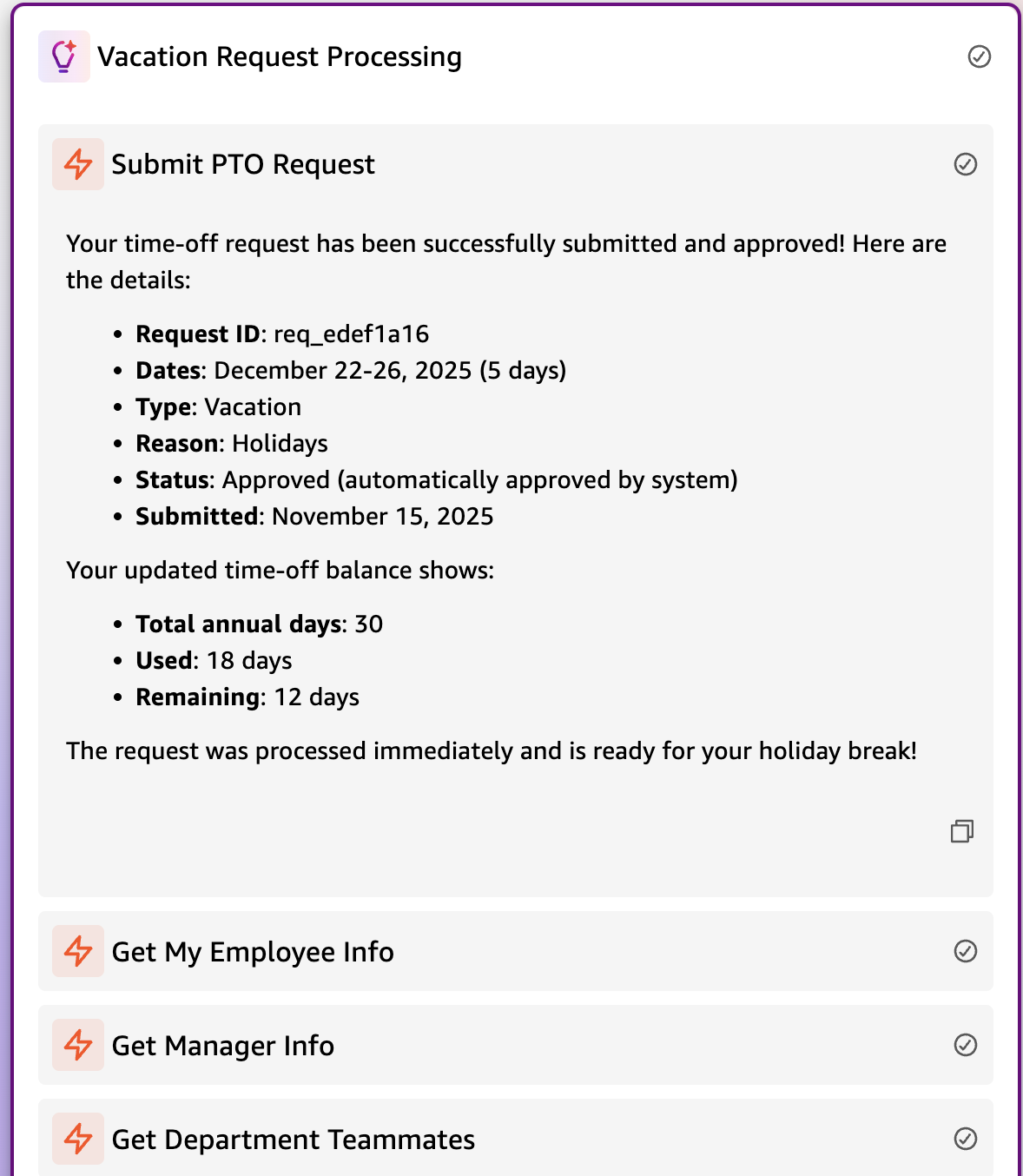
The Quick Suite Flow executes multiple tasks sequentially in an automated workflow
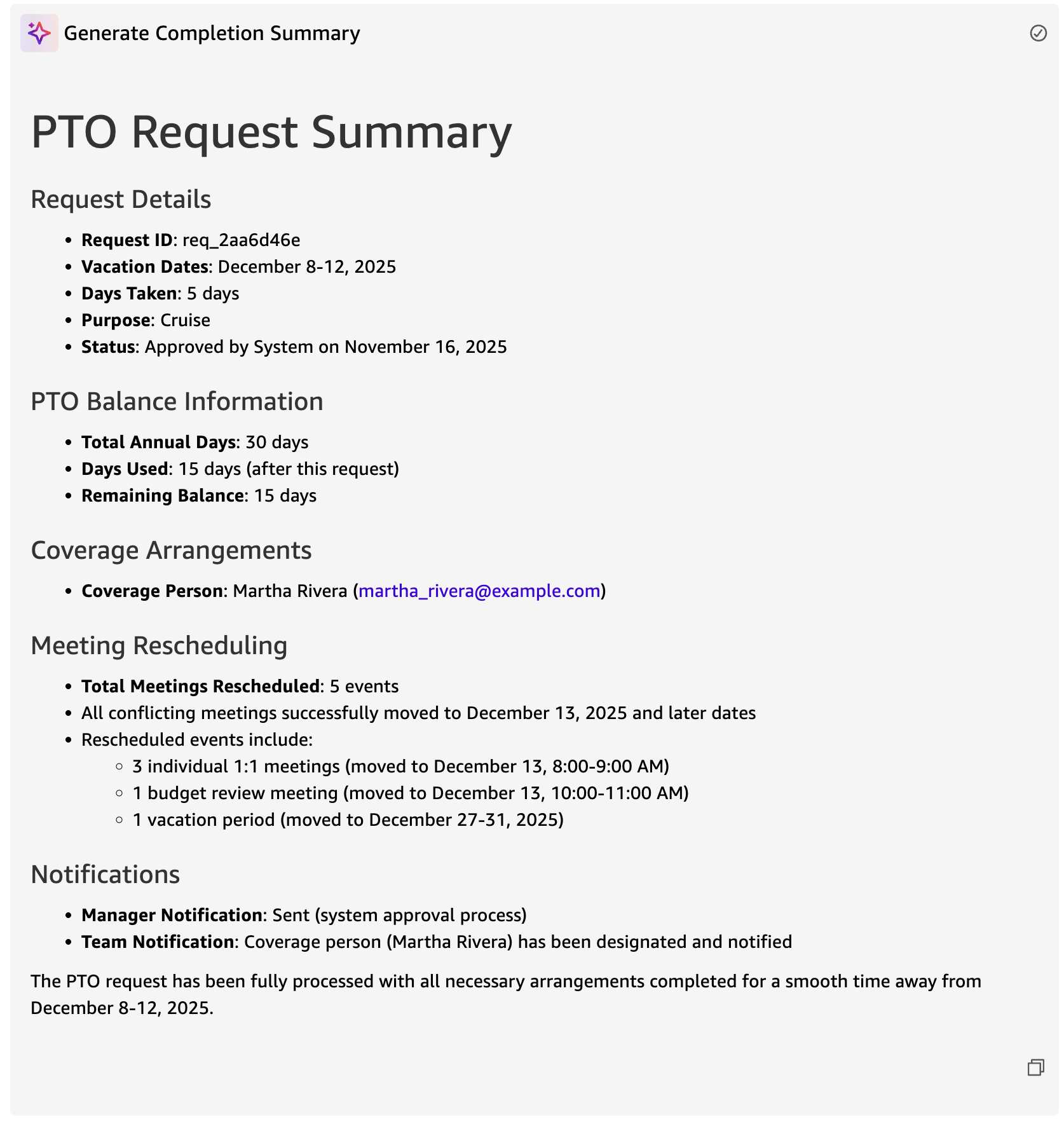
When the flow is complete, a summary report is generated.
Step 2: Review Quick Suite Example Flows
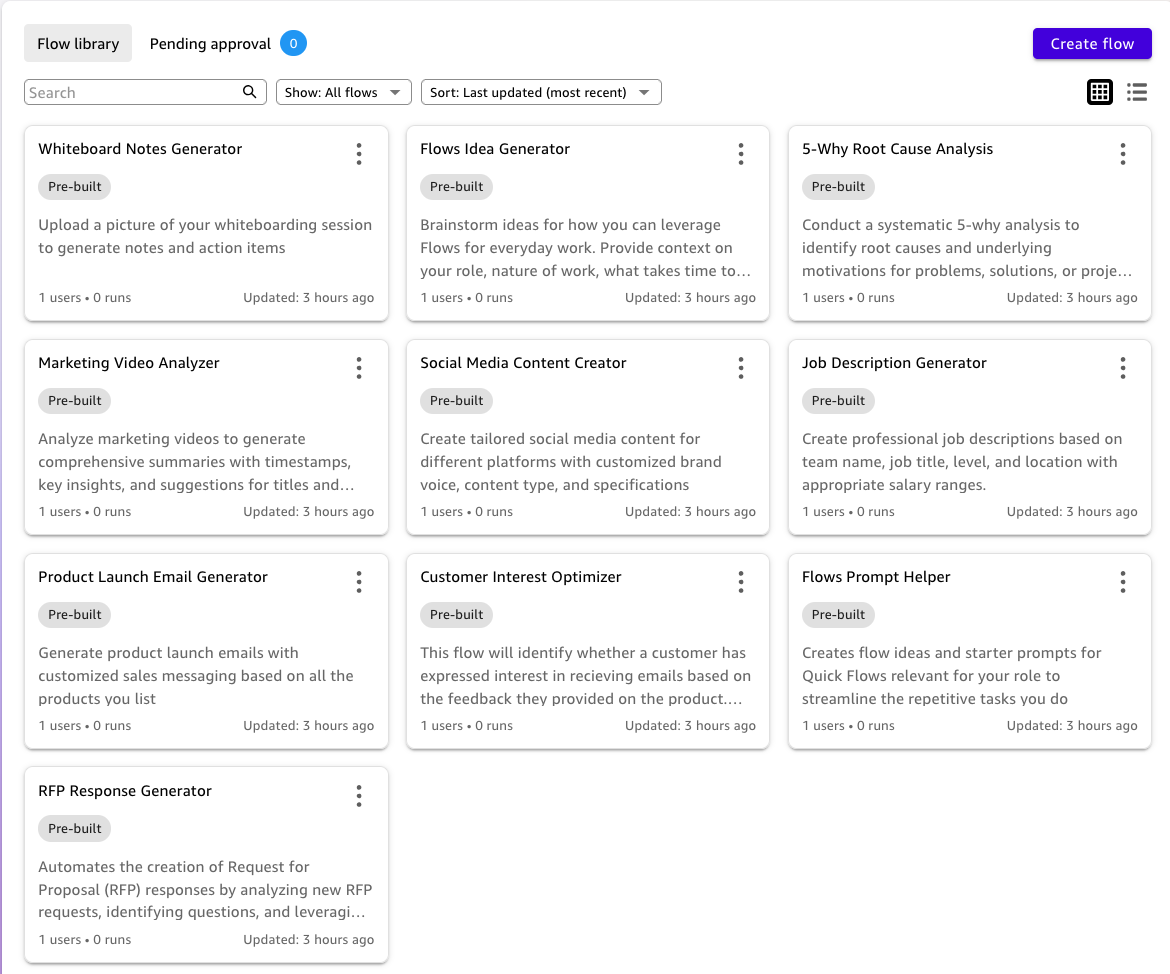
Quick Suite starts off with a bunch of sample pre-built flows that you can review to get ideas of things to use a flow for.
Step 3: Flow Steps
Quick Suite has many capabilities for flows including AI-generated responses, integrations with external tools, reasoning, and requesting input from users.
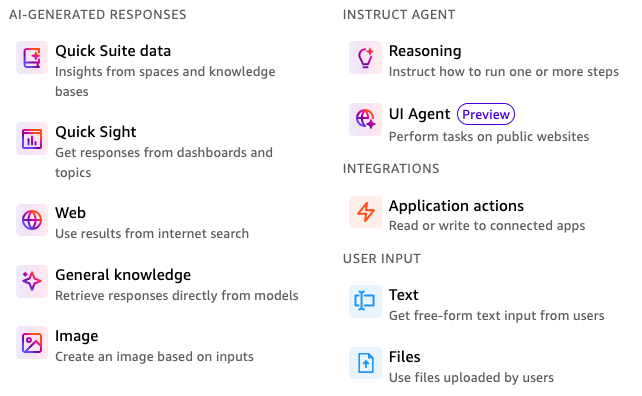
AI-Generated Response Steps retrieve and generate outputs from various data sources:
- Quick Suite Data Step - Retrieves responses from spaces and knowledge bases in your Quick Suite environment
- Quick Sight Step - Gets insights from your dashboards and topics for data visualization and analytics
- Web Step - Generates results from internet search to incorporate current information
- General Knowledge Step - Generates responses directly from AI models without requiring specific data sources
- Image Steps - Generate AI images from text and image inputs for creating professional-grade visual content
Instruct Agent Steps add intelligent processing and automation capabilities:
- Reasoning Group Step - Processes if, when, and how to run steps using natural language instructions. This allows you to control flow execution, establish dependencies between steps, and manage conditional logic
- UI Agent Step - Performs tasks on public websites through automated interactions
Integration Steps connect to external systems:
- Action Step - Performs read or write operations in connected external systems like Salesforce, Jira, ServiceNow, and other third-party applications
User Input Steps collect information from users to initiate and guide the flow:
- Text Step - Gathers free-form text input from users
- Files Step - Accepts file uploads from users for document processing