Chat with AI Assistant
Step 1: Main Chat Window
There are a lot of features built into the main chat window. Let's get you oriented to the main features you'll be working with.
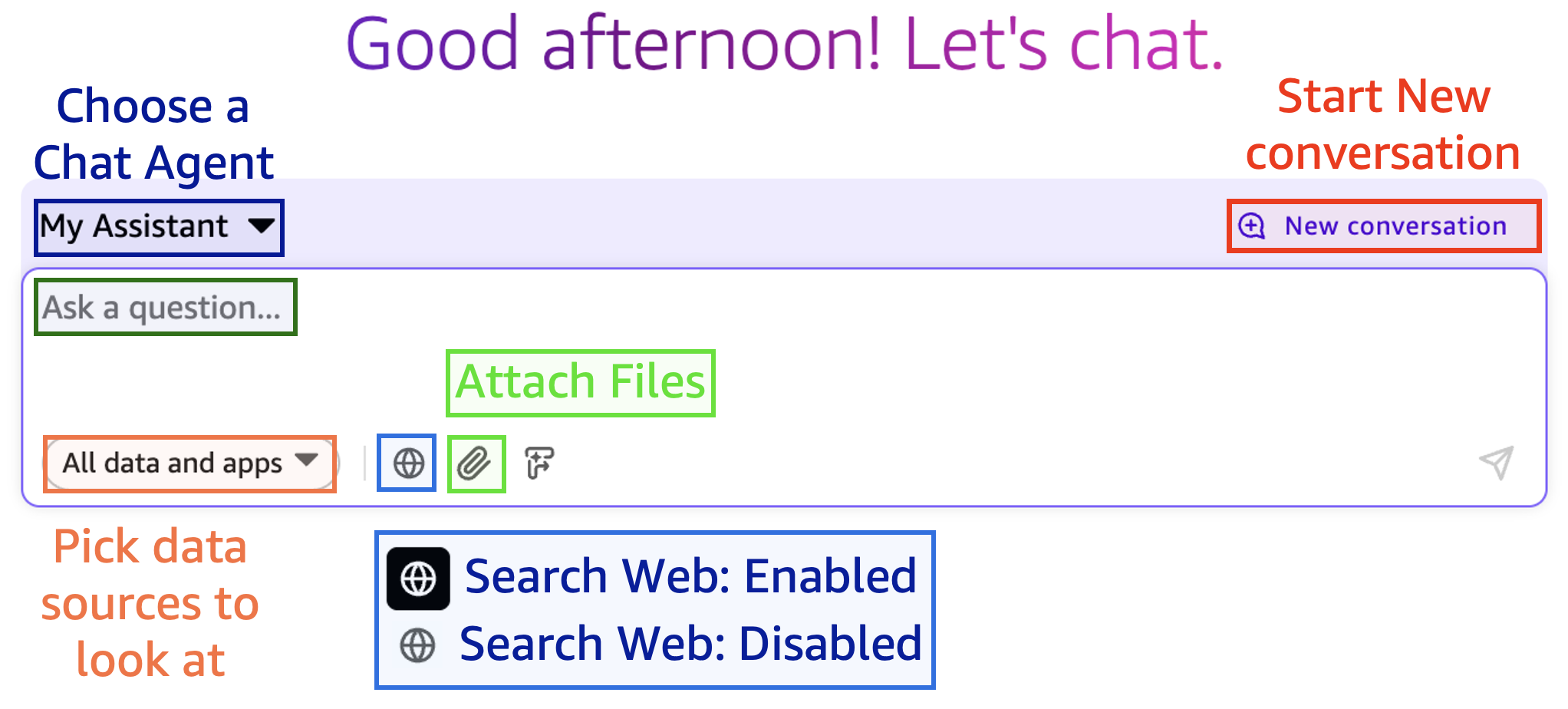
- Ask a Question: Edit box where you ask questions
- My Assistant: Choose between different Chat Agents that you or someone else created.
- New Conversation: When changing topics, start a new conversation. Old conversations are available via history
- All data and apps: Choose what data sources to use as a source
- Search Web: Toggle on/off if you want to use the web to help answer your request
- Attach Files: Upload files for the chat agent to use
Using chat features
-
Click All data and apps:

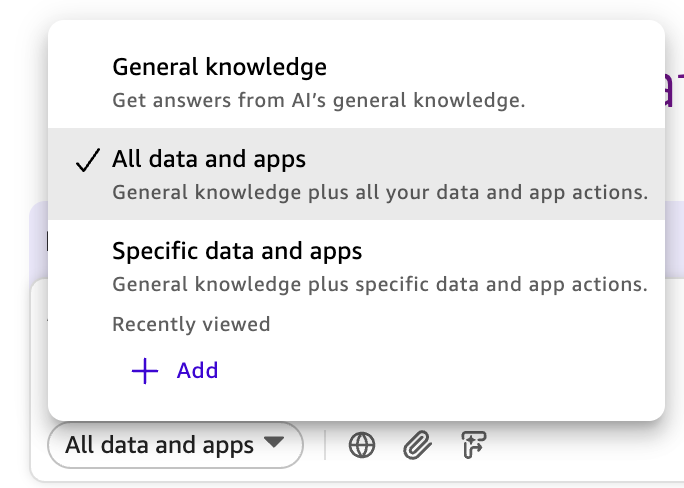
Choose what information the chat agent can access when responding:
- General Knowledge: Don't use any company data, only use public knowledge
- All data and apps: Look at all company data that Quick Suite knows about
- Specific data and apps: Choose a subset of company data sources
-
Click General knowledge
It should now look like this:

-
Enabling and disabling searching on the internet is set by clicking on the globe icon.
It has two settings:
-
 Web search ENABLED
 -
 Web Search DISABLED
-
-
Click the Web Search button to disable it.
It should be a globe with white background :

Step 2: Ask a General Knowledge question
- Let's ask it an HR related question with web search disabled to see how it answers just using general knowledge.
Copy Text
Whenever you see one of these grey text boxes, you can click on the blue rectangles  at the top-right corner to copy the text to your clipboard.
You can then paste it where you need to using [CTRL]+V
-
Your main chat window should look like this:
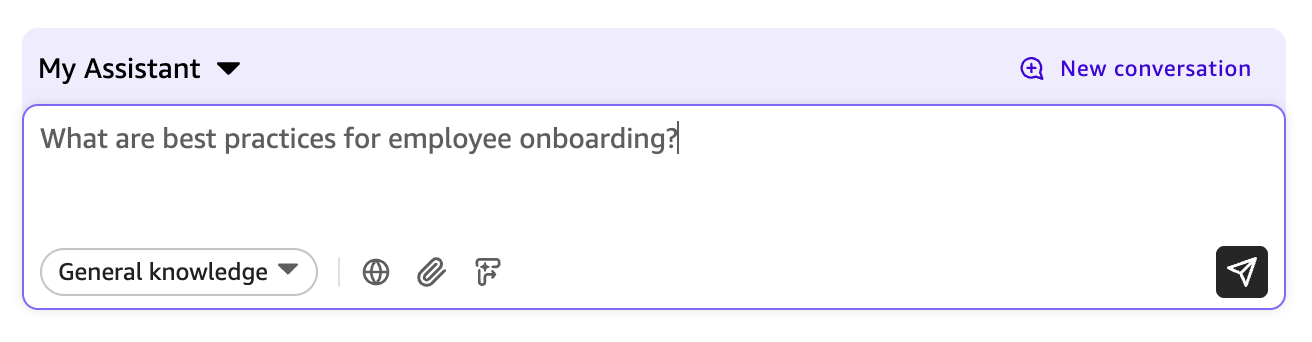
- General Knowledge: selected
- Web Search: DISABLED
-
Press [enter] (or click the "send" button
 ) to make Quick Suite provide an answer.
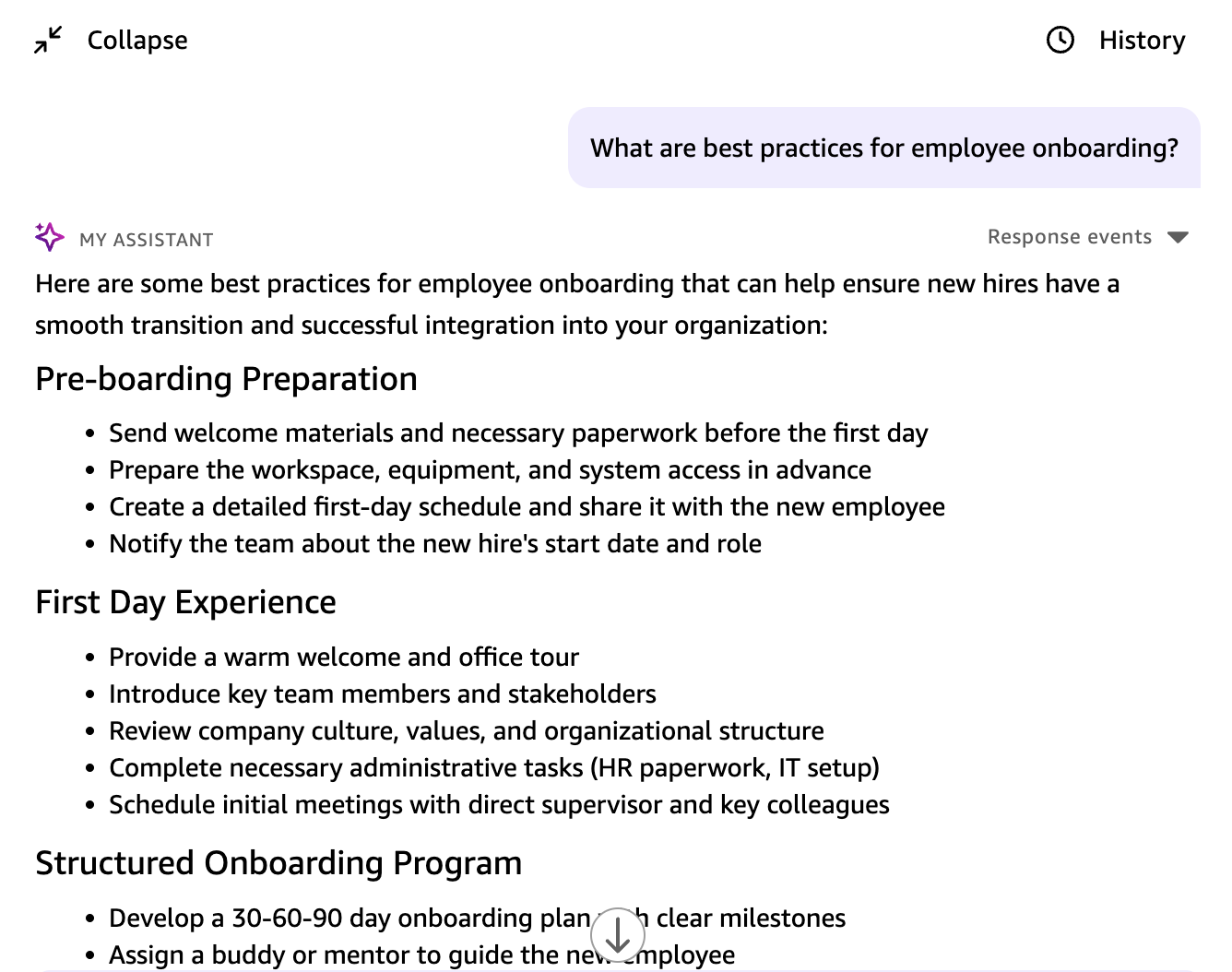
You should get a fairly comprehensive, "general knowledge" answer describing best practices for onboarding new employees.
Something similar to this:
Answers
Due to the non-deterministic nature of generative AI, you may not get precisely the same response for the same query, however expect the response to be relevant to the query.
Step 3: Ask a question about recent information
Let's see the difference between using Quick Suite with and without web search enabled by asking about something recent.
-
Click New conversation button
 at the top right corner of the chat box.
 This will clear out the previous questions and answers. You should do this whenever starting a new topic.
-
Type or copy/paste this into the "Ask a question" chat box field.
-
Review the answer. Notice that the answer is outdated because the AI only knows information from its "general knowledge". This means the data it was trained on, which is typically 6-18 months old.
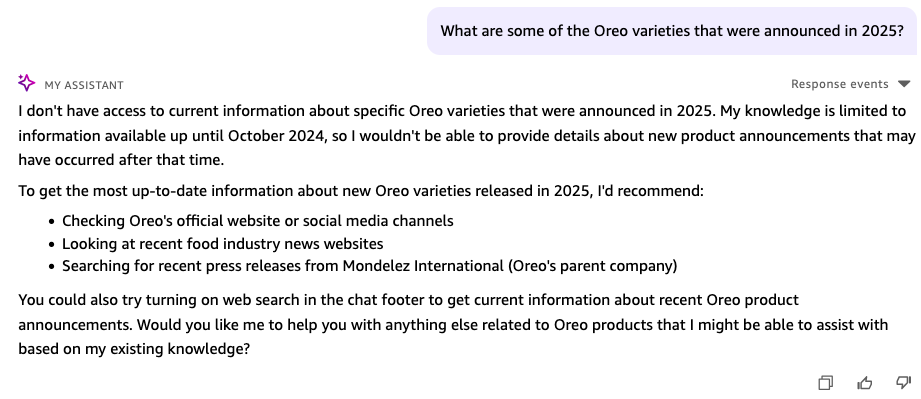
Quick Suite notifies you that it can't provide information for recent events without additional information or enabling web search.
Let's see how the answer is different with web search enabled.
Step 4: Enabling Web Search for Current Information
-
Enable Web Search by clicking on the globe so it turns black.
- Web Search: ENABLED
- Web Search:
-
Now ask the same question again and we should get a much more relevant answer.
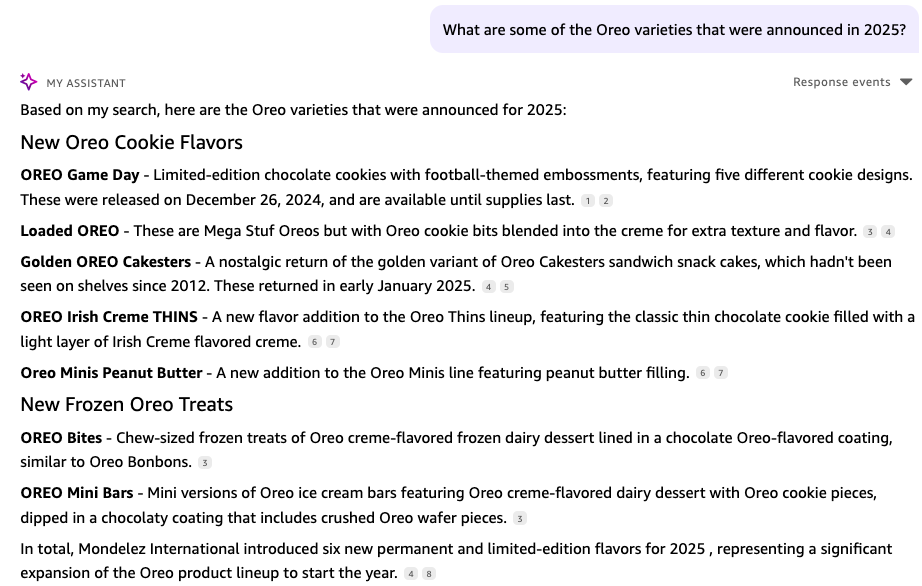
Web Search - Key differences
- Without web search = knowledge may be 6-18 months old
- With web search = current information from the web
Quick Suite searched the internet to find current information about Oreo flavors. This is the key difference: without web search, it uses older knowledge from its training; with web search, it gets real-time information from the web.
Step 5: Information Source Citations
When reading the answer text, you'll notice some small numbers next to some sentences and bullet points.
-
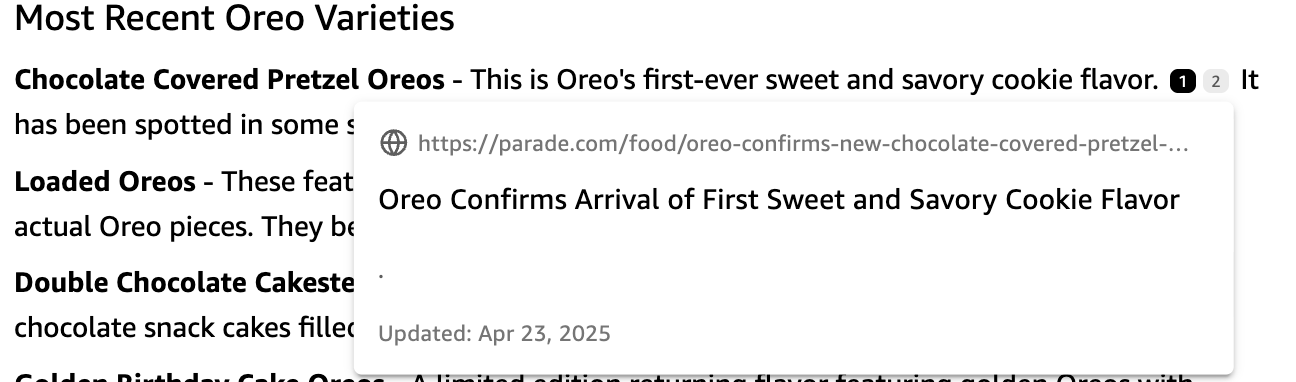
Hover your mouse over one of these numbers
-
You'll see the source of the information and when it was retrieved.
If you wanted to read the source yourself, you could click on the link and it would take you to the web page that the information was found on.
-
You can also see the sources by clicking on the Sources button
 at the bottom of the answer.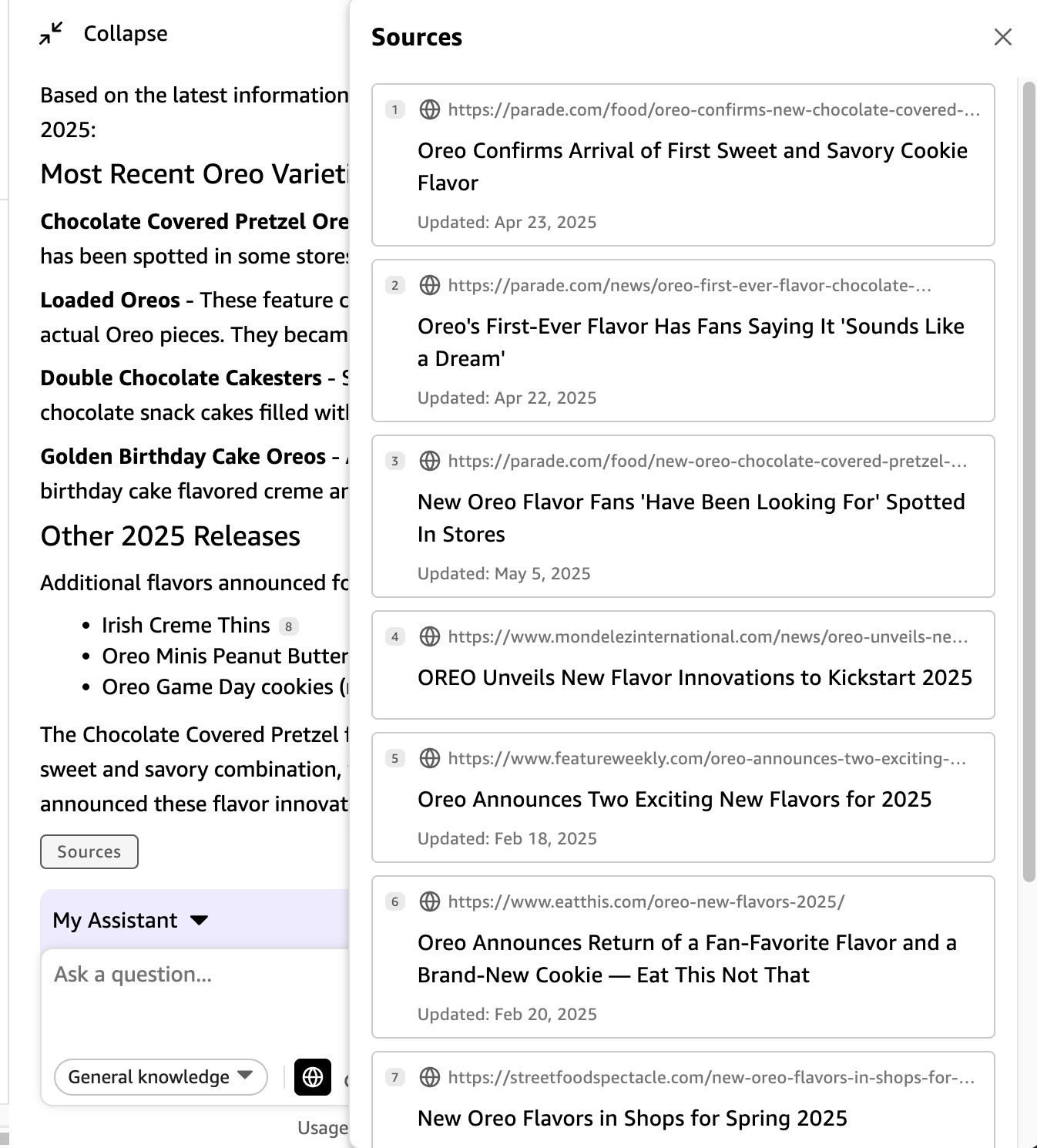
This will give you a long, itemized list of all the sources it searched, then read to provide the comprehensive answer back to you.
Retrieval Augmented Generation (RAG)
When AI goes beyond its built-in knowledge to find current information, this is called Retrieval Augmented Generation (RAG).
In Quick Suite, when you enable internet searching or connect data sources, the AI retrieves relevant information from those sources first, then uses that current, specific information to generate accurate, source-backed answers.
In this example, we simply used the internet to look up the answer. But even more power comes when you provide Quick Suite access to your company data and ask questions about it.
Quick Suite can answer your questions using Mondelez data stored on SharePoint, OneDrive, in Microsoft Teams, in Outlook email, etc to answer questions like:
- "What are the latest cocoa processing techniques discussed in our R&D documents?"
- "What are the current food safety standards for our European manufacturing facilities?"
- "Summarize compliance issues identified in our last internal quality review"
- "Find all emails discussing supply chain disruptions in the last month"
- "Find all customer feedback about our recent packaging redesign"
- "What were the main cost-saving initiatives discussed in leadership meetings?"
- Click Next to continue to the next section