Chat with Company Data
Let's see how providing company data to a chat will improve answers.
Step 1: Ask a Question Without Company Knowledge
-
Click New conversation button
 to start a fresh conversation
 -
Check and adjust your chat settings as necessary
- General Knowledge:

- Web Search:
 DISABLED
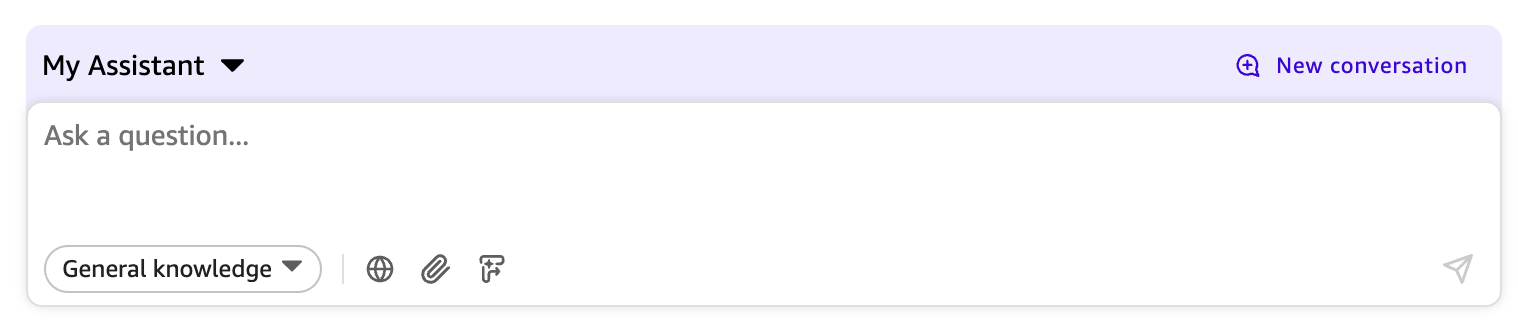
- General Knowledge:
-
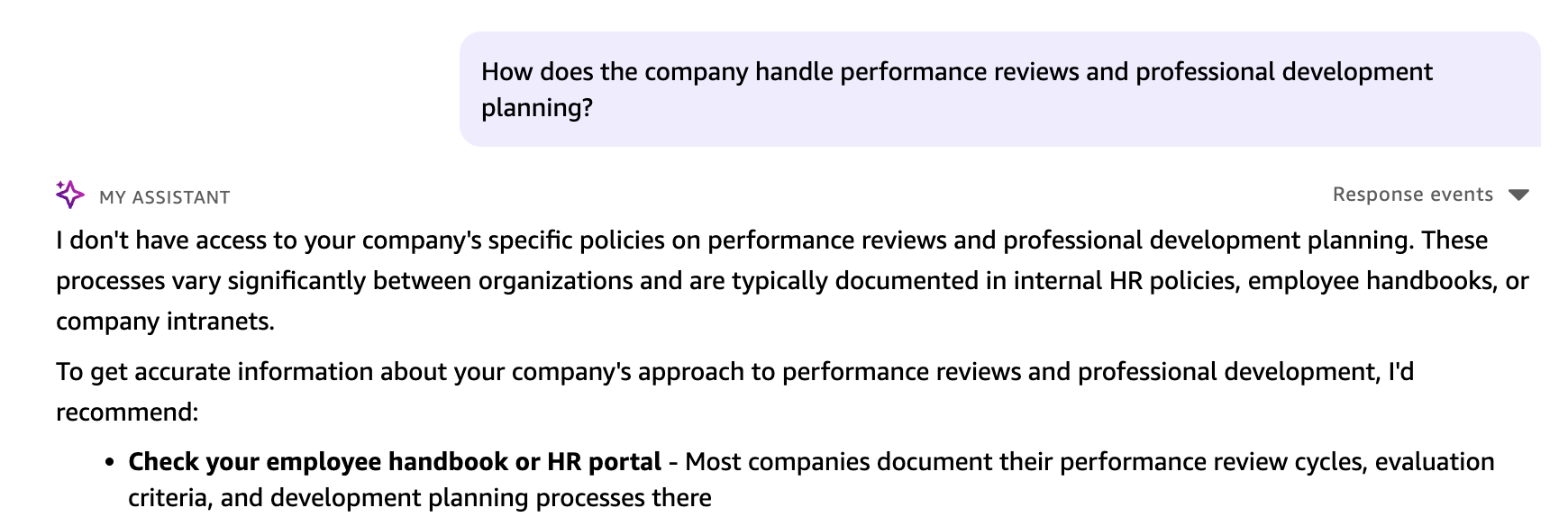
Ask the question and press enter:
Because we did not give the model access to information about our company policies, it is unable to answer the question accurately.
Step 2: Provide Company Knowledge With File Upload
-
Download this employee handbook: Employee Handbook
Click on "Employee Handbook" in the orange box above. ^^^
Save the PDF file to your computer.
-
Click the Attach Files paperclip icon
 .
. -
Click Select file and specify the
employee_handbook.pdfthat you just downloaded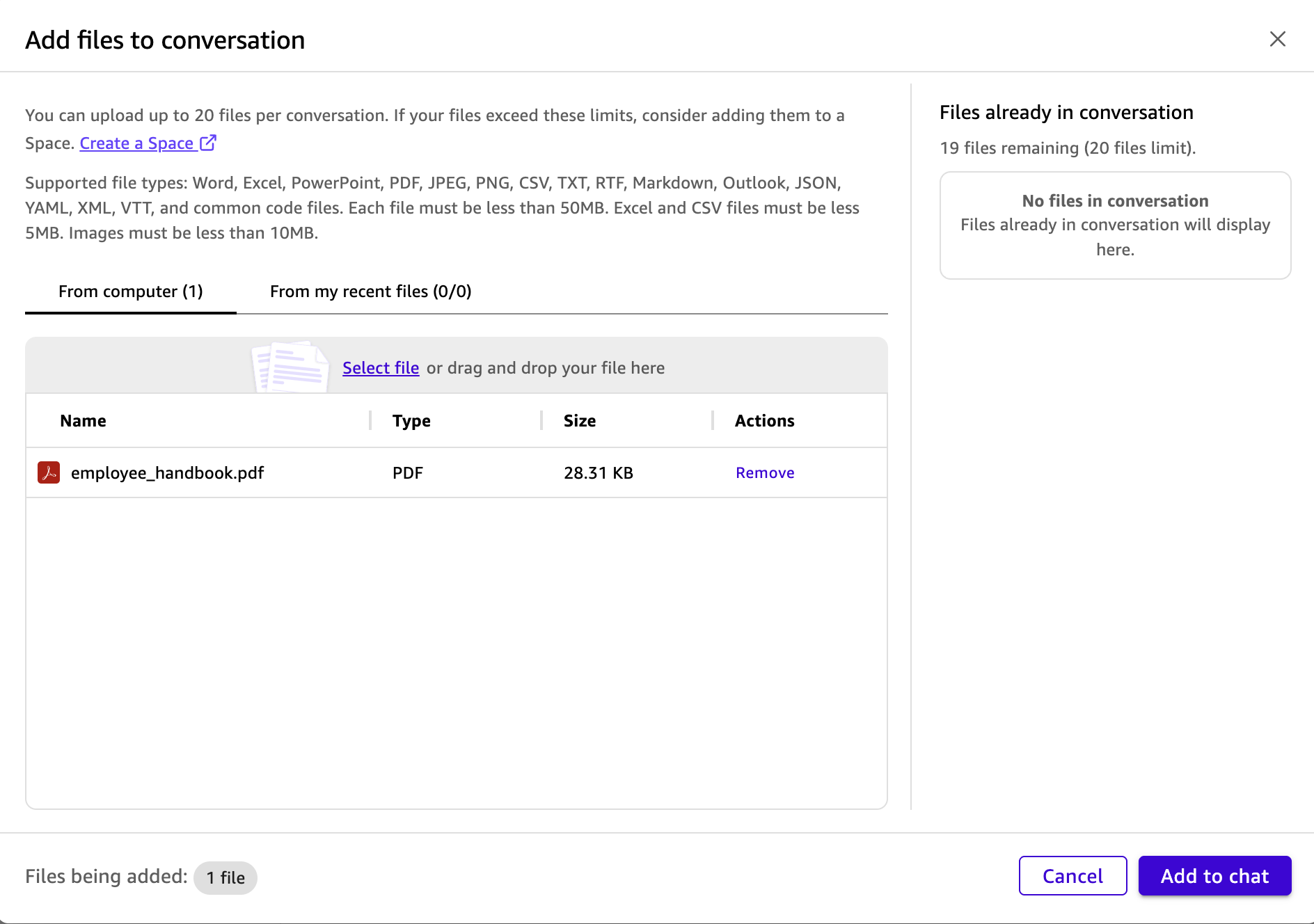
-
Click Add to chat
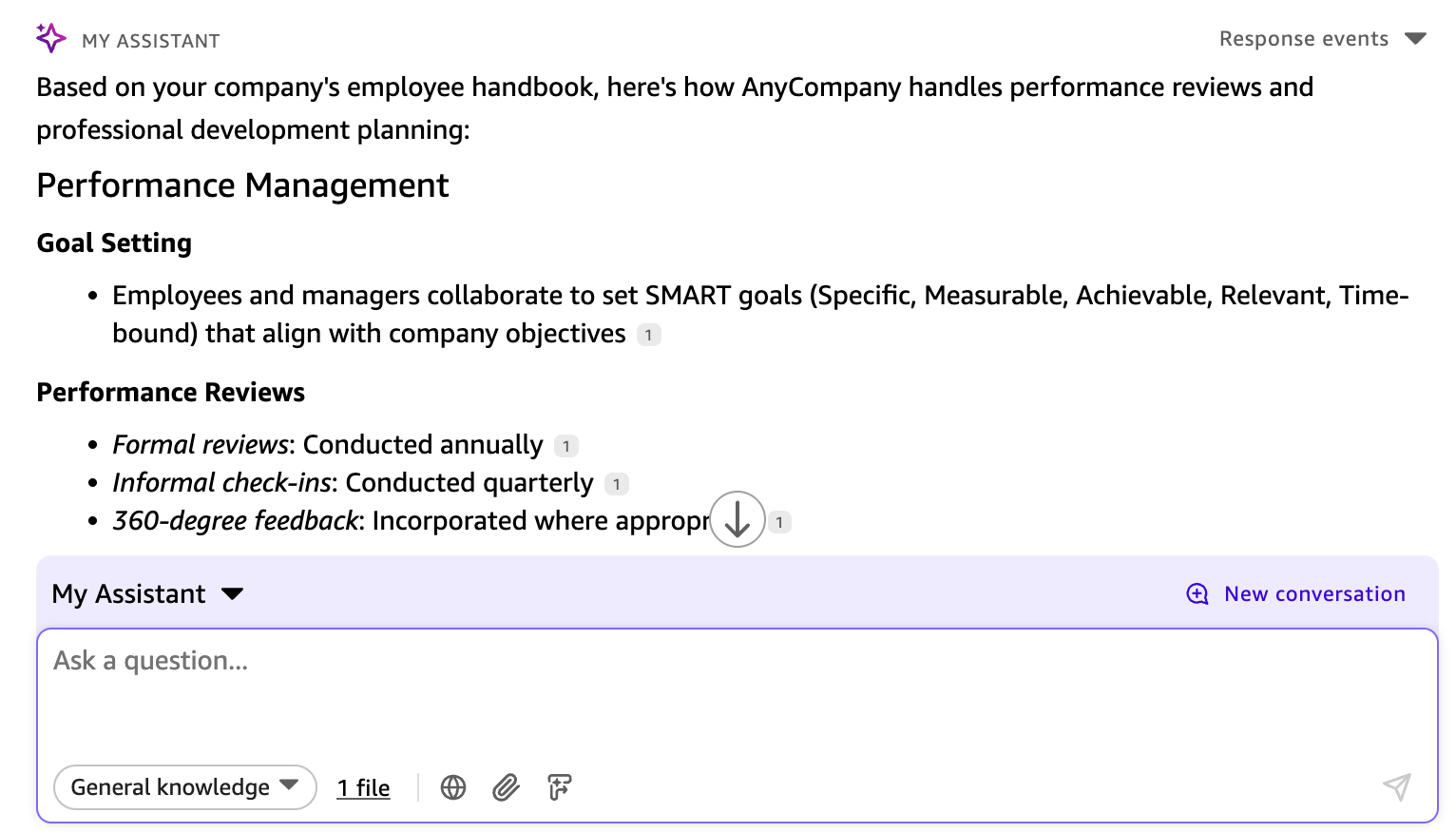
Now you can ask the same question again, and the chat will give you a relevant answer based on the contents of the PDF.
-
Ask the question
The answer is much more relevant now
Uploading files works well for personal documents or one-off questions. However, for company-wide information like policies and procedures, Quick Suite's Spaces feature provides a better solution. Spaces allow teams to share documents with all employees, eliminating the need for everyone to upload the same files individually.
The HR team has already added these policy documents to a Space, ready to answer your questions!
Step 3: Use Company Data Already in Quick Suite
The HR team uploaded some files about company policies that all employees have access to. These are stored in a Quick Suite Space.
employee_handbook.pdf- Employee handbook for HR policiesleave_policy.pdf- Company leave and vacation policiesperformance_review_guidelines.pdf- Performance evaluation guidelinespublic_holidays.csv- Company holiday calendar
To use the company knowledge, all we have to do is change the chat so it uses company data.
-
Click New conversation
-
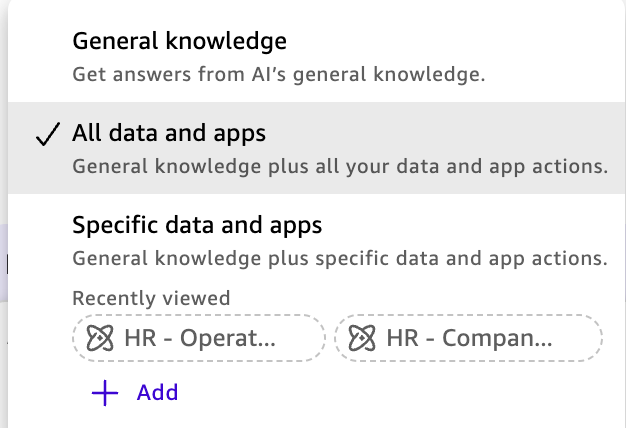
Click on General Knowledge and select All data and apps. This will search across all Quick Suite data that has been shared with you... including the company employee handbook.
-
Double check your settings. Adjust if necessary.
- All data and apps

- Web Search: DISABLED
- All data and apps
-
Let's ask the same question from earlier to make sure we can look up information from the employee handbook.
-
Ask the question
You should get a relevant answer. This time probably with even more detail because it's looking across ALL the company data that Quick Suite knows. Not just the one PDF you uploaded earlier.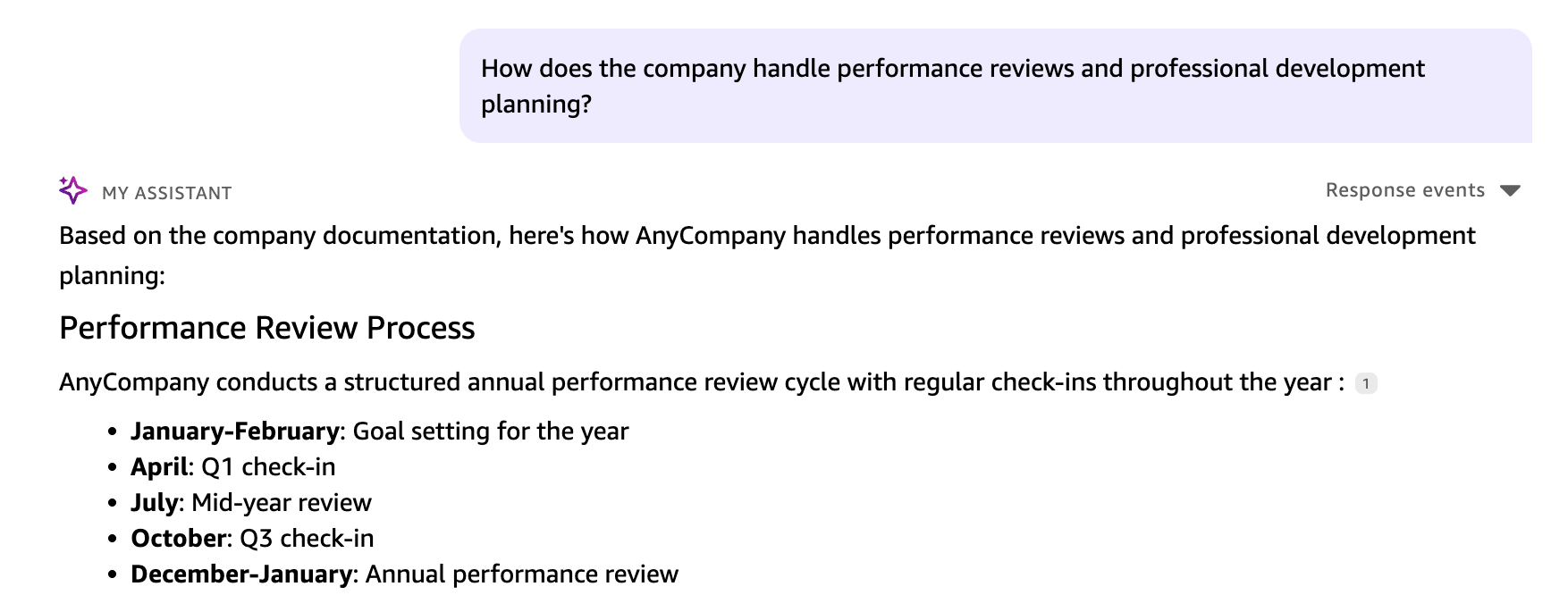
-
Let's ask a question about company holidays. Ask the question
You should get an answer that's relevant and accurate because the information is in the data already uploaded into Quick Suite and shared with you.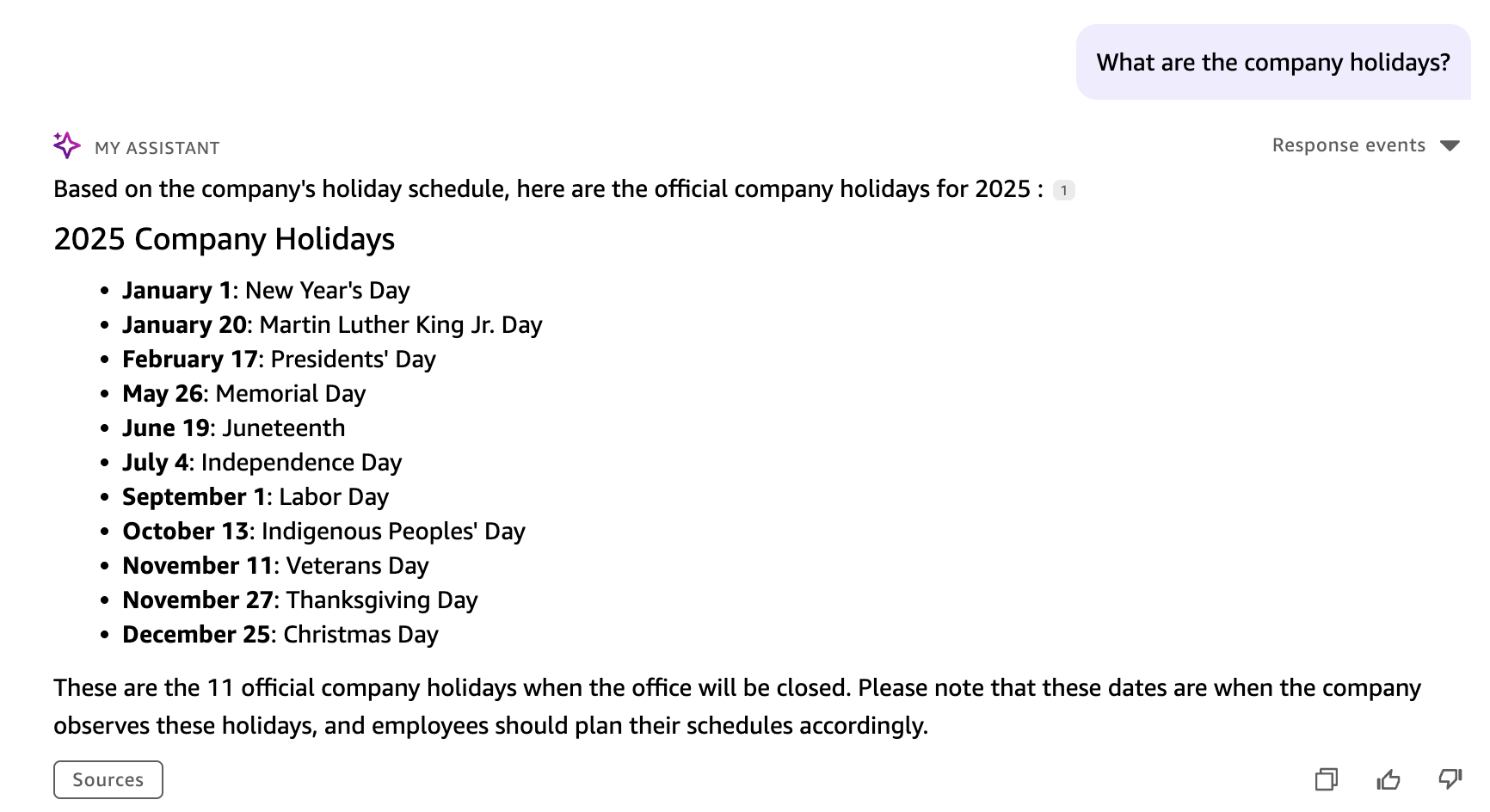
You can see that Quick Suite makes it very easy to work with company data that has been shared with you.
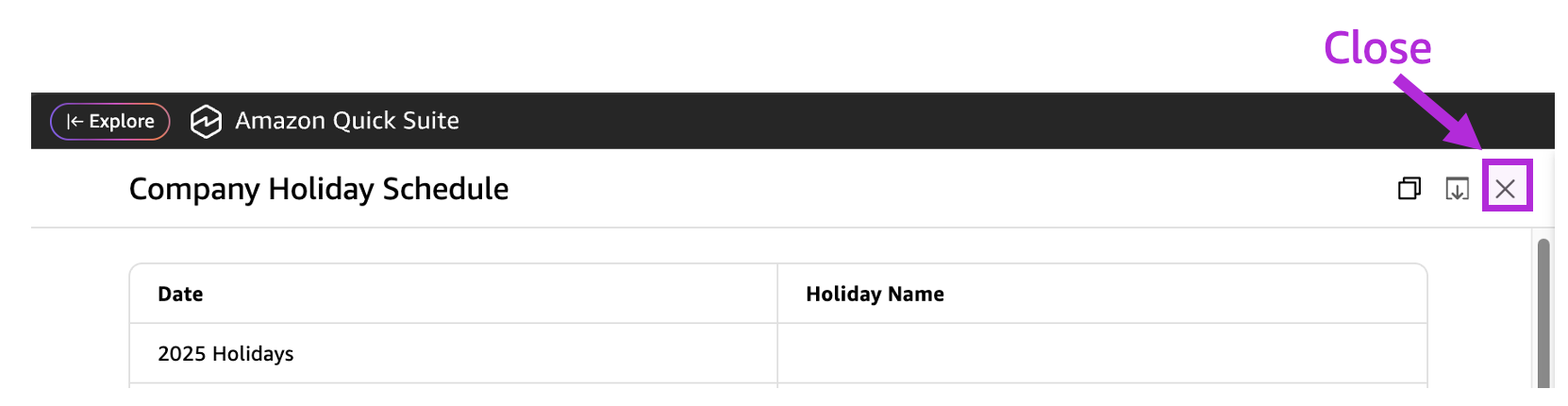
Table
If the answer popped up in a table format, once you've read the information, you can click on the X to close the table view.
Data Security
Quick Suite respects your access permissions. You can only access data and information that has already been shared with you through your organization's access controls. For example, you can search company-wide policies, but you won't see sensitive HR information like employee reviews or salary data unless your role specifically grants you that access.
- Click Next to try some questions with sample CPG data.