Getting Started
Step 1: Connect to Workshop
To get started, we need to get you connected to an AWS account that I set up for you specifically for this workshop.
If you are working in a group with other people, ONLY ONE PERSON PER TEAM SHOULD CONNECT TO THE AWS WORKSHOP ACCOUNT.
Note
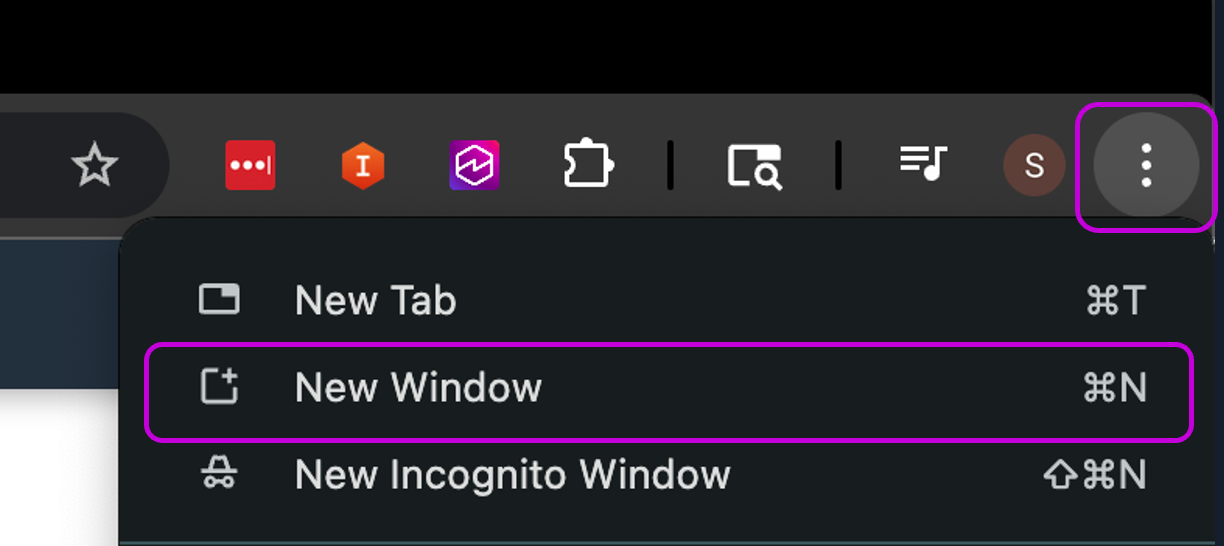
For best results, I recommend using a new browser "window" for the workshop. This will allow you to have just the workshop and instructions visible.
-
Click the 3 dots or lines at the right side of your browser
-
Choose New Window
-
Click HERE to open AWS Workshop Studio in a new browser tab.
Workshop Studio:
https://catalog.us-east-1.prod.workshops.aws/join?access-code=0649-0d4337-e1Access code:0649-0d4337-e1
Step 2: Log in
One Account Per Team
Only one person per team should do these steps below to log into AWS Workshop Studio. Other team members can have these instructions up on their laptops.
-
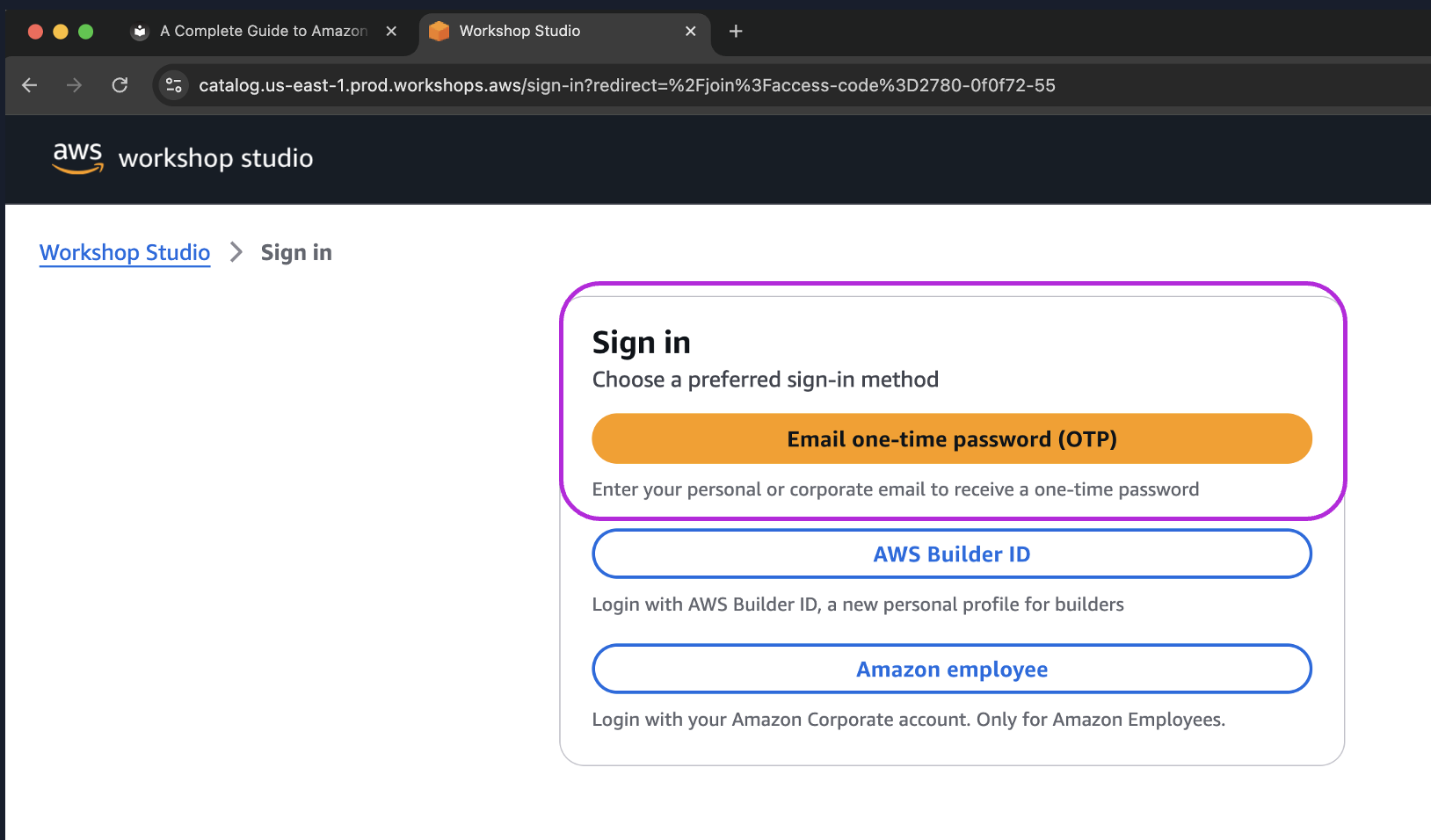
Choose Email one-time password (OTP)
-
Enter your
@mdlz.comemail address and click send passcode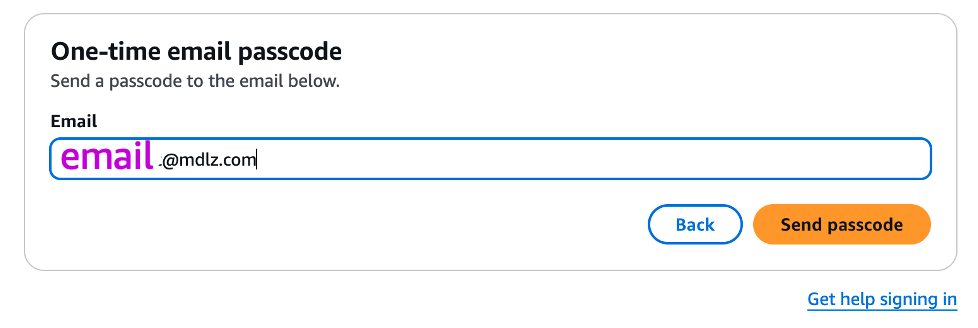
-
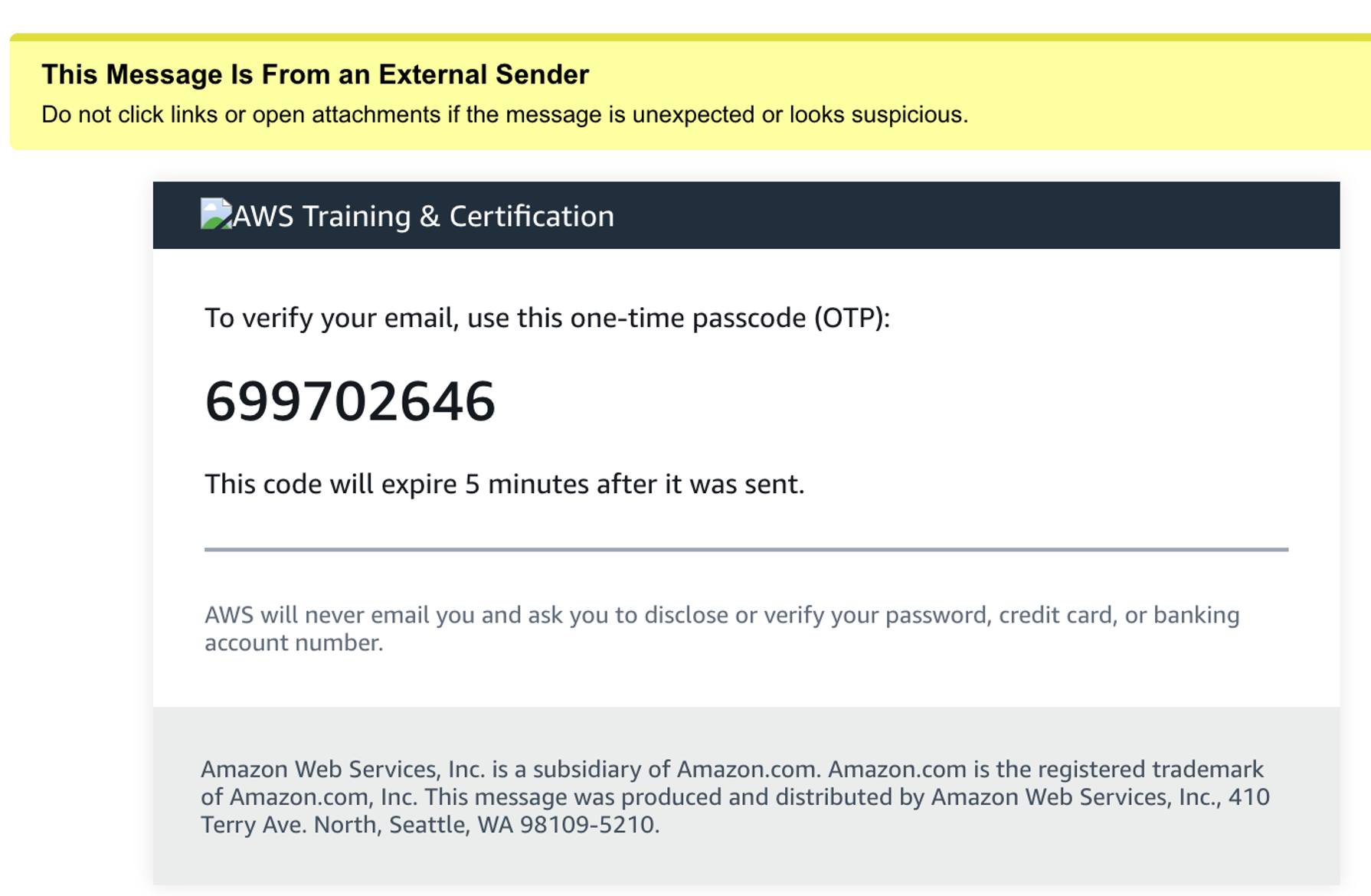
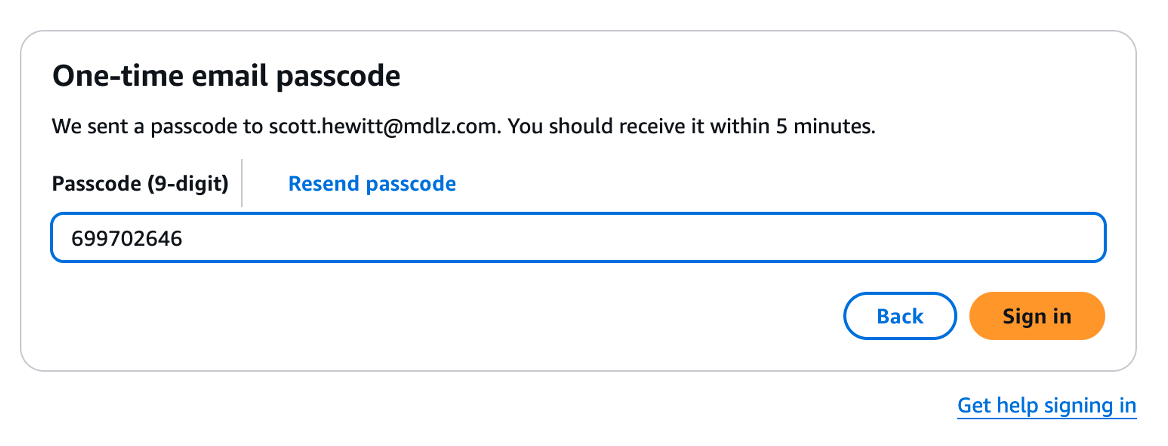
You will receive an email like this. Copy the passcode
-
Paste passcode into the edit box on the web site and click Sign in
-
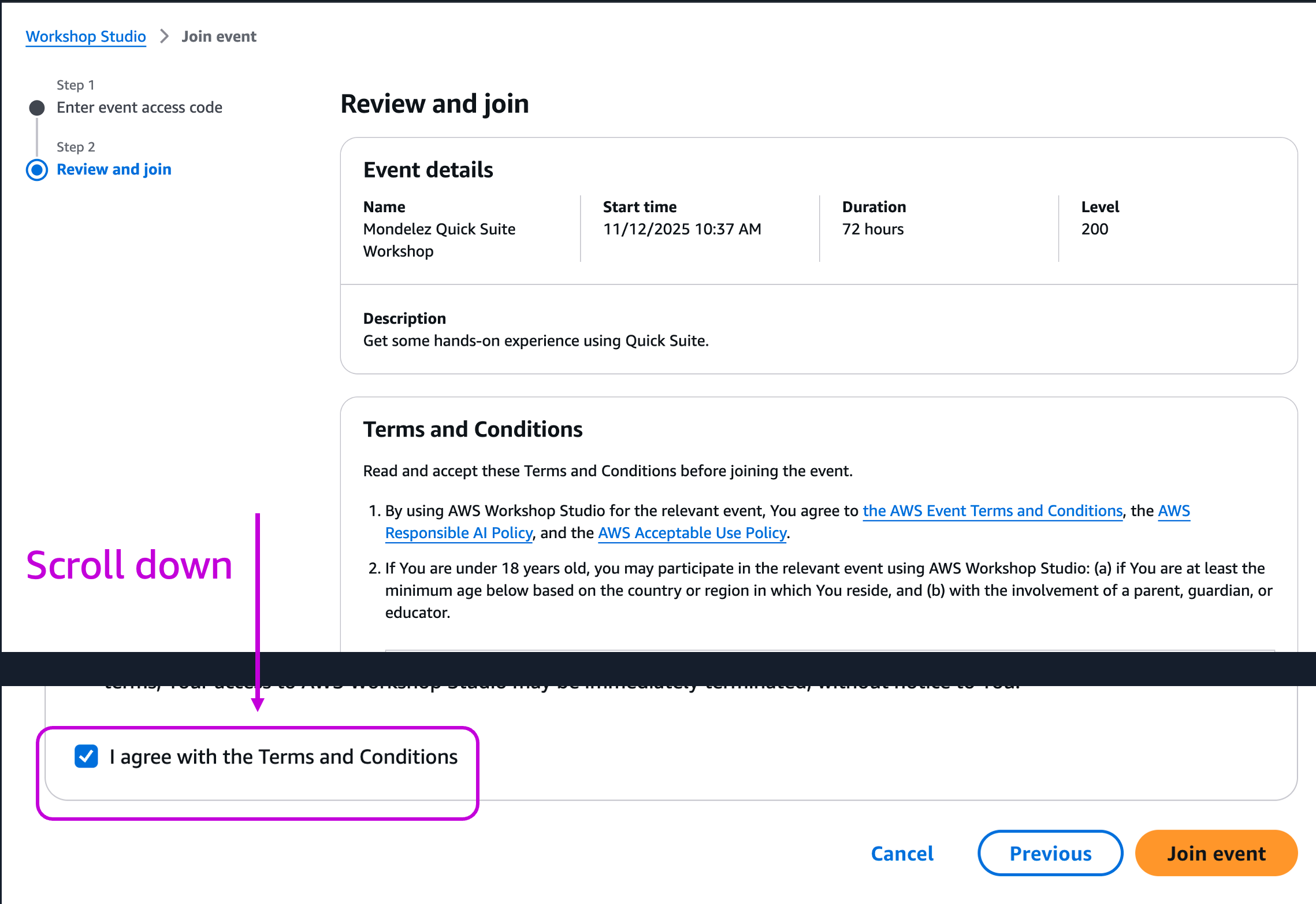
Review the Terms and Conditions.
-
Check "I agree with the Terms and Conditions" and click Join event
Step 3: Access Amazon AWS Console
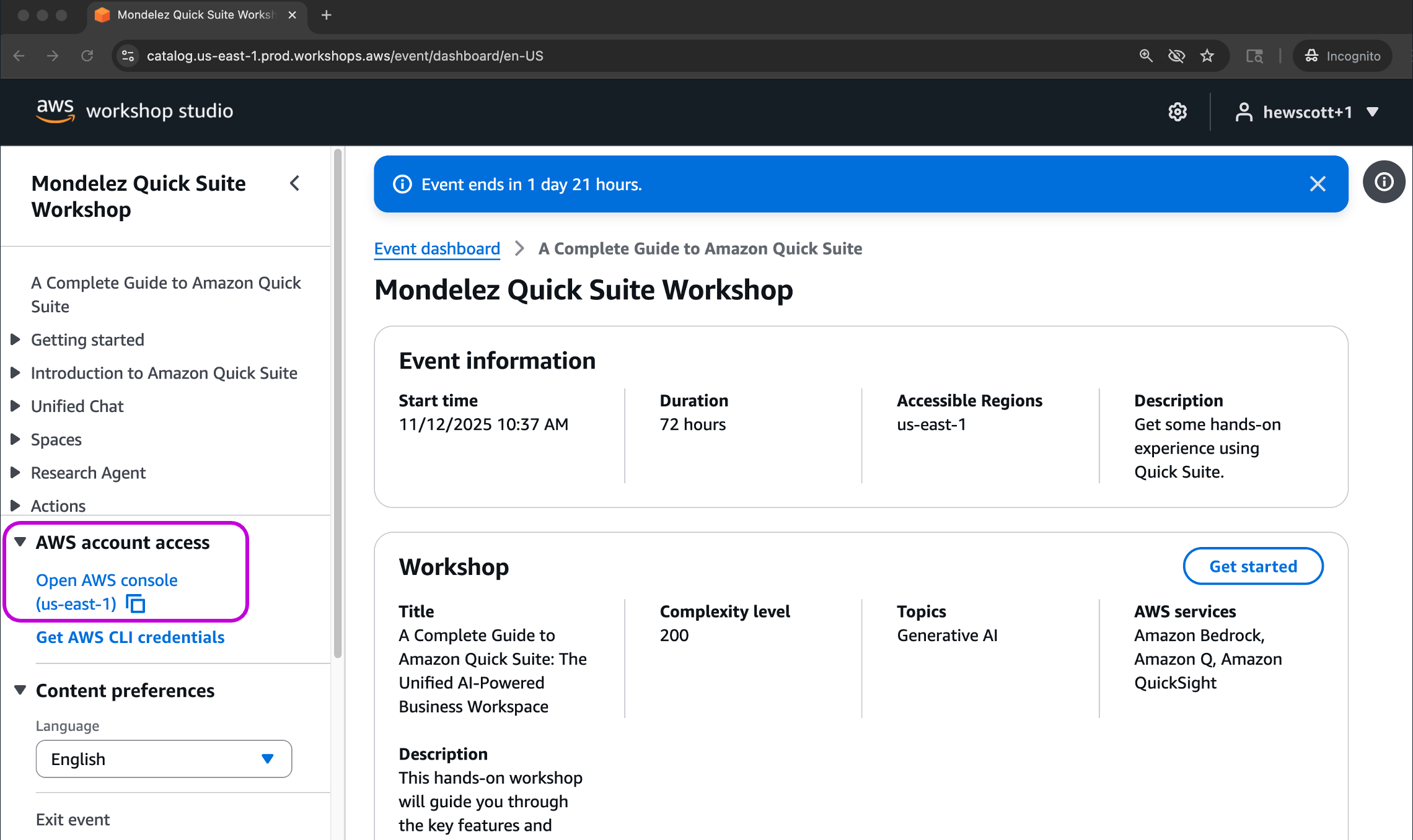
You will be taken to the "AWS Workshop Studio" site.
-
Click Open AWS console (us-east-1) on the left side. This will open a new tab in your browser with connection to a dedicated AWS workshop account.
Step 4: Accessing Amazon Quick Suite
Now that you have access to the AWS Console, follow these steps to access Amazon Quick Suite:
-
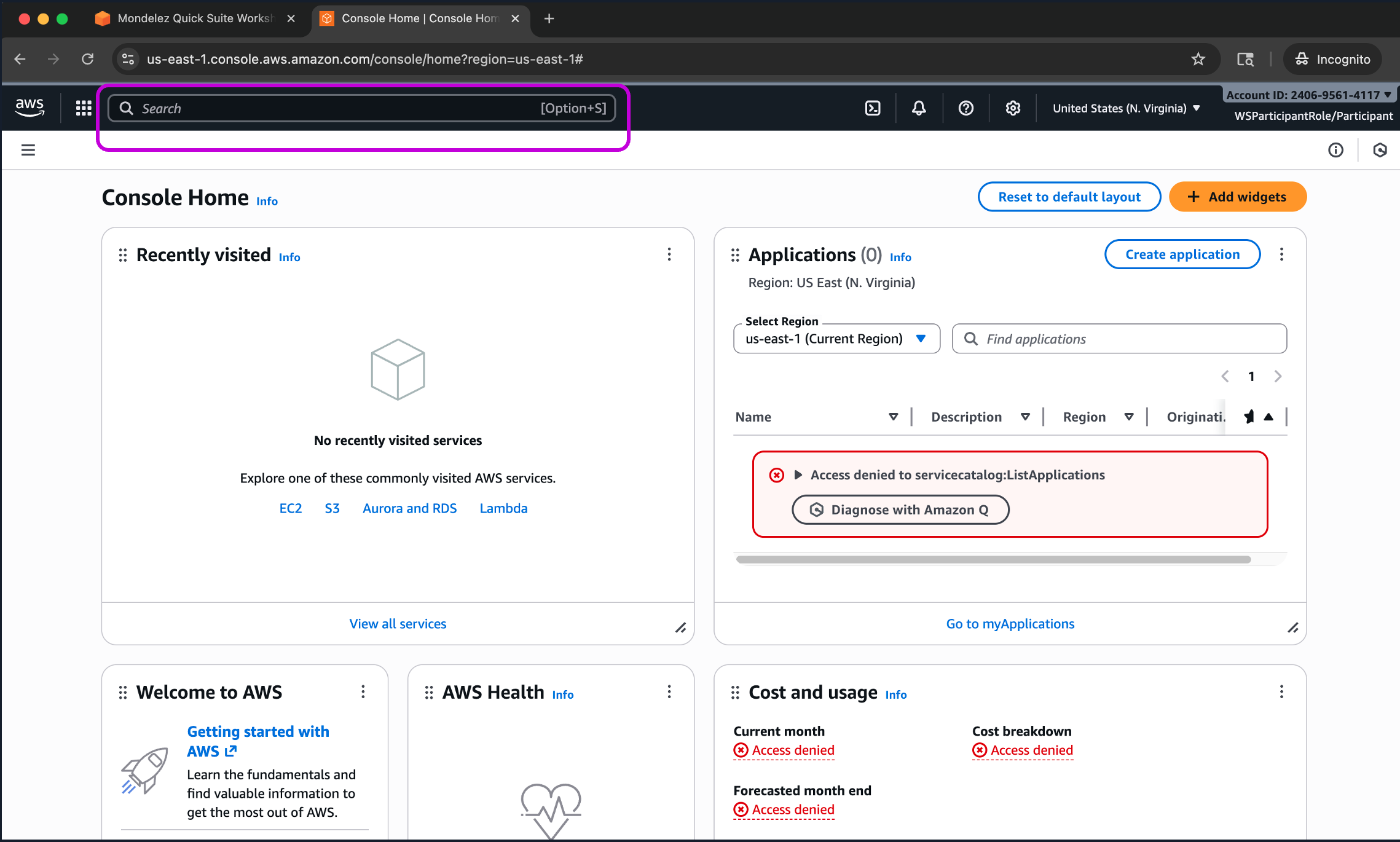
In the search bar at the top, type
quick suiteand select Amazon Quick Suite from the services list.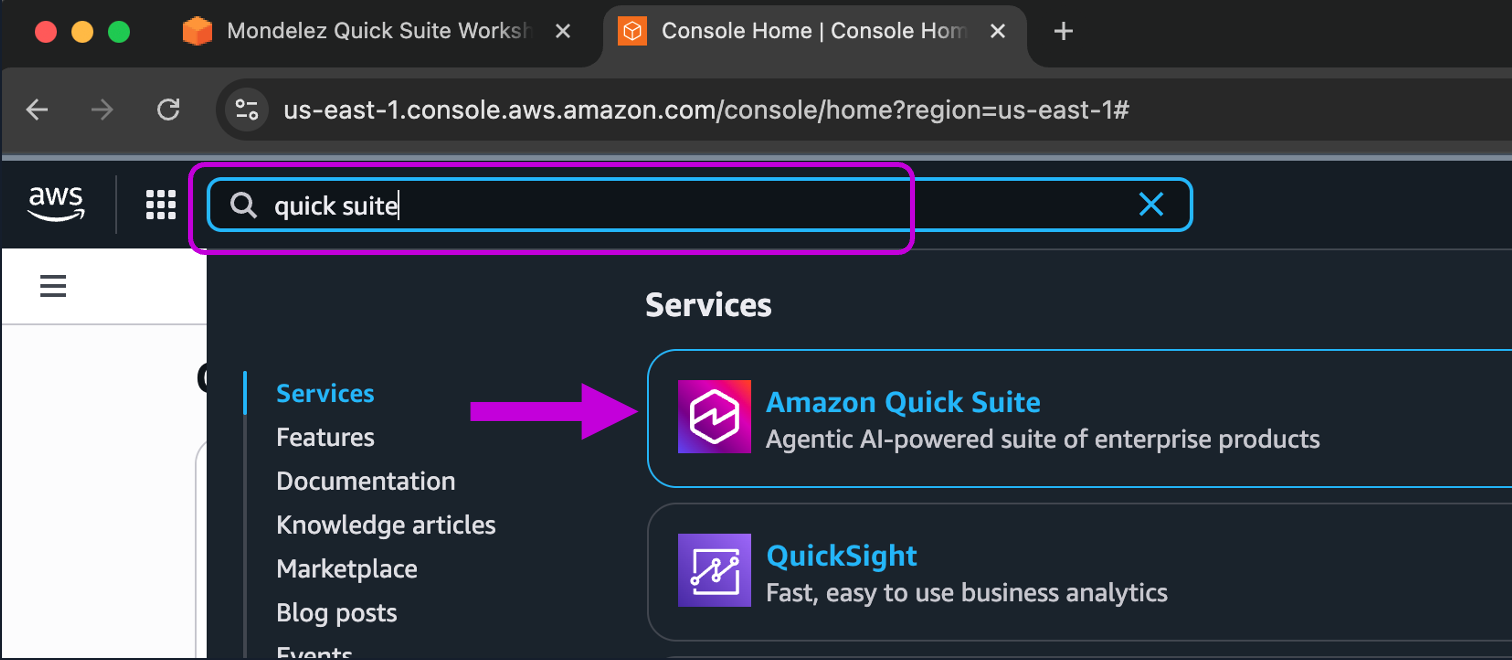
-
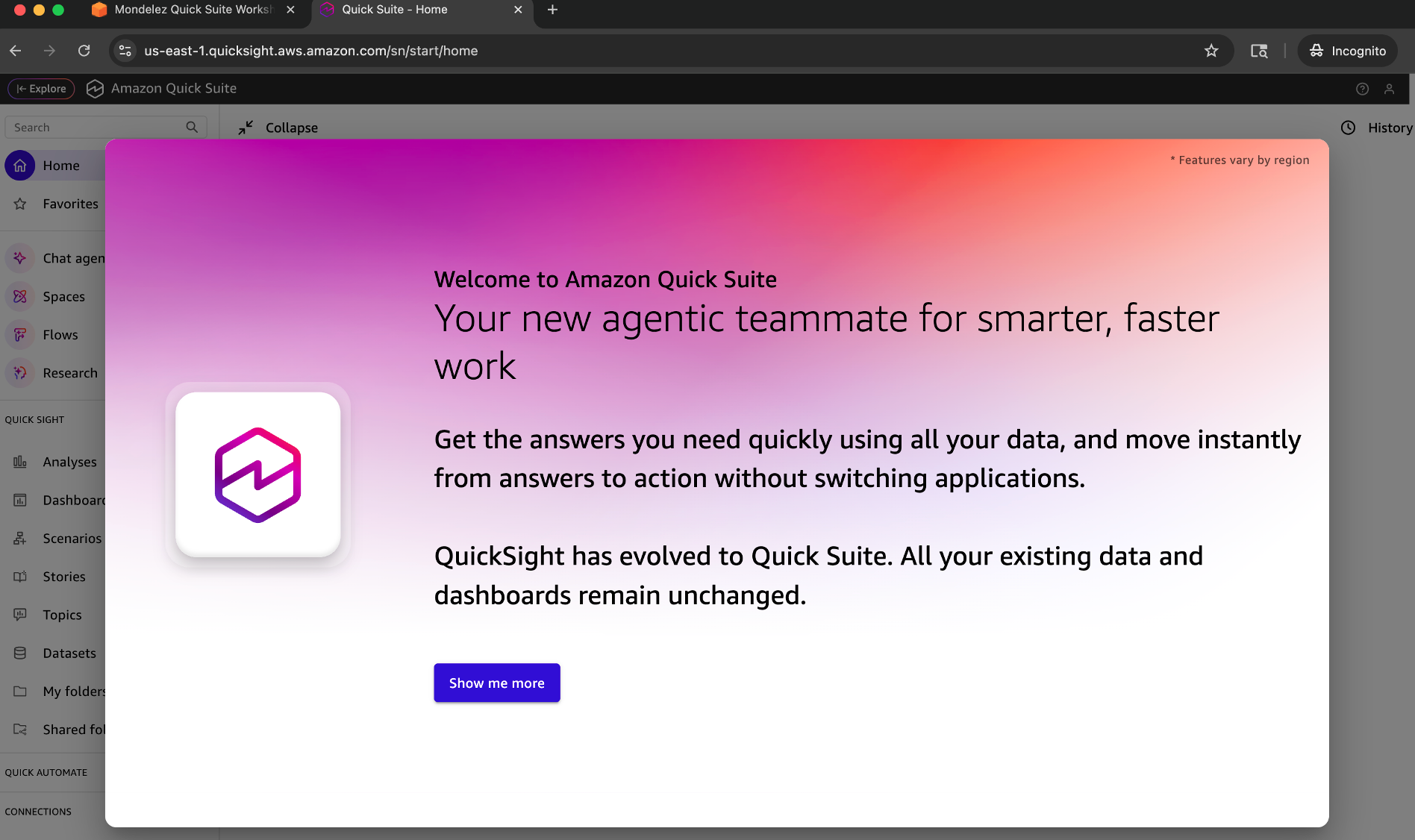
This will open up a new page for Amazon Quick Suite. Don't do anything in this browser tab yet.
Step 5: Get Browser Ready
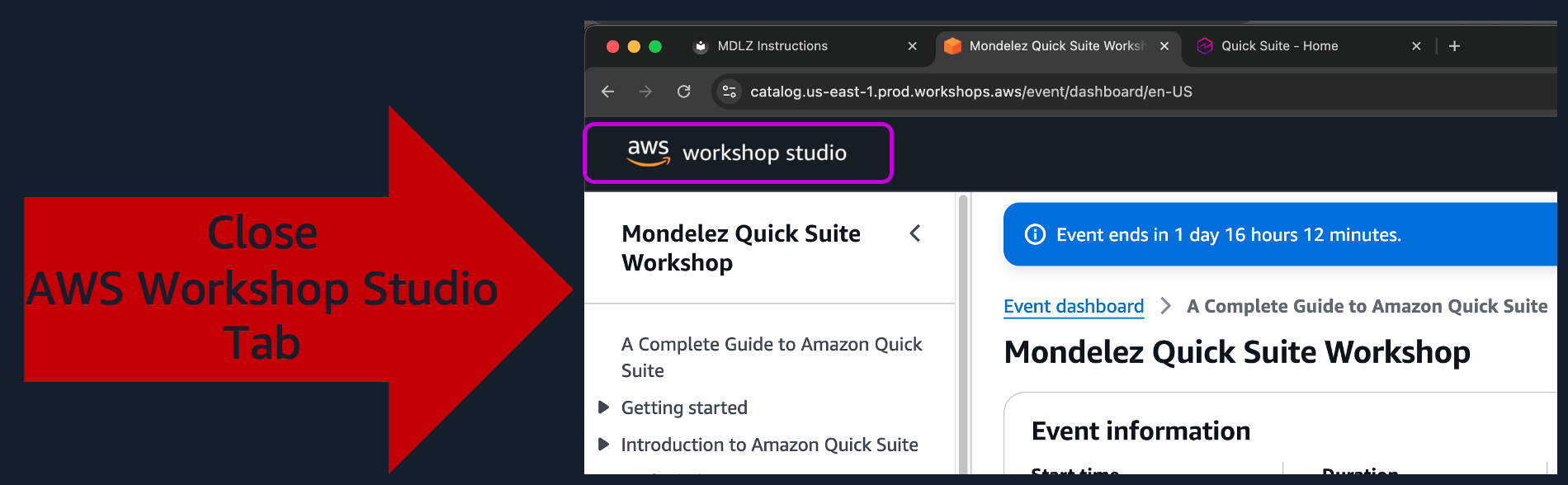
To make things easier to work with, let's close the AWS Workshop Studio Tab. Find the tab with "AWS Workshop Studio" in the upper left corner and close it.
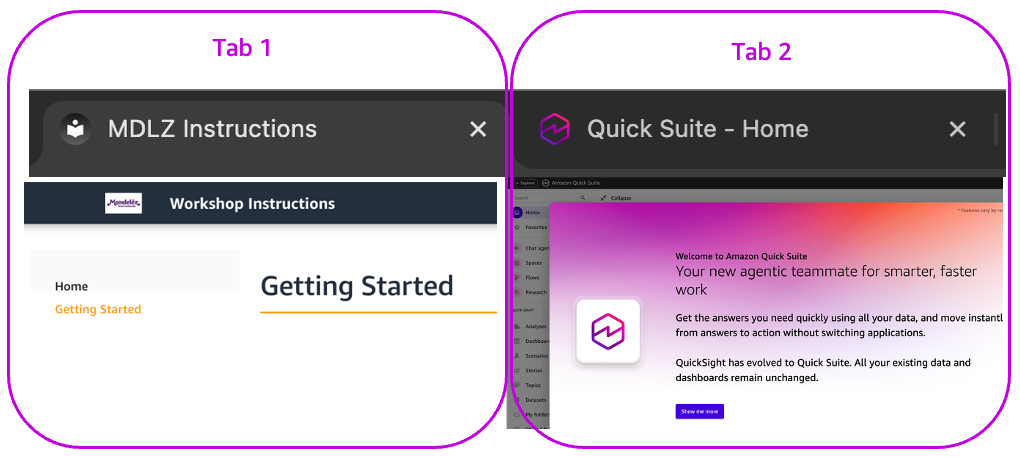
You should now have only two tabs open:
- MDLZ Instructions
-
Quick Suite
You're now ready to begin learning about Agentic AI with Amazon Quick Suite!
Continue onto the next section by choosing the Next button at the bottom right corner of the instructions